





How to fix high CPU temps impacting gaming performance?
High CPU temperatures are a gamer’s nemesis, often leading to reduced frame rates, stuttering, and even system crashes. When your CPU gets too hot, it automatically “throttles” its performance to prevent damage, directly impacting your gaming experience. Understanding why this happens and how to fix it is crucial for maintaining optimal performance and hardware longevity.
Understanding the Impact of Overheating on Gaming
Modern CPUs are designed with thermal safeguards. When temperatures exceed safe limits, the CPU reduces its clock speed, a process known as thermal throttling. This protective measure can manifest as noticeable frame rate drops, inconsistent performance, and a general lack of responsiveness in games. Ignoring high temperatures can also shorten the lifespan of your components over time.
![GPU Thermal Throttling [Impact on Games & How to Prevent]](/images/aHR0cHM6Ly90czEubW0uYmluZy5uZXQvdGg/aWQ9T0lQLmNxMGNGajBWOTctdXVva00zT0ktaGdIYUY0JnBpZD0xNS4x.webp)
Diagnosing High CPU Temperatures
The first step to fixing the problem is confirming it. You can monitor your CPU temperatures using various software tools such as HWMonitor, Core Temp, MSI Afterburner, or NZXT CAM. Run these tools while gaming to see real-time temperature readings. A CPU temperature consistently above 85-90°C during heavy gaming indicates an issue that needs addressing.
Common Causes of Elevated CPU Temperatures
1. Dust Accumulation
Over time, dust, lint, and pet hair can accumulate on your CPU cooler’s heatsink and fans, creating a thermal blanket that prevents efficient heat dissipation.
2. Degraded Thermal Paste
The thermal paste between your CPU and its cooler acts as a heat transfer medium. With age, it can dry out, crack, or become less effective, hindering heat transfer.
3. Inadequate Cooling Solution
Stock CPU coolers are often sufficient for basic tasks but may struggle under the intense loads of modern gaming, especially with higher-end CPUs or during overclocking.
4. Poor Case Airflow
An insufficient number of case fans, incorrect fan placement, or cluttered internal cabling can restrict airflow, trapping hot air inside your PC case.
5. Overclocking
While overclocking boosts performance, it also significantly increases heat output. An overclock without adequate cooling can quickly lead to overheating.
Effective Solutions to Lower CPU Temperatures
1. Clean Your PC Thoroughly
The simplest and often most effective fix is to clean your system. Use compressed air to blow out dust from your CPU heatsink, case fans, and all air intake/exhaust vents. Ensure the fans are spinning freely.

2. Reapply Thermal Paste
If your thermal paste is old, consider replacing it. Carefully remove your CPU cooler, clean off the old thermal paste from both the CPU IHS (Integrated Heat Spreader) and the cooler’s base using isopropyl alcohol, and then apply a fresh, pea-sized dot or line of new high-quality thermal paste before remounting the cooler.
3. Upgrade Your CPU Cooler
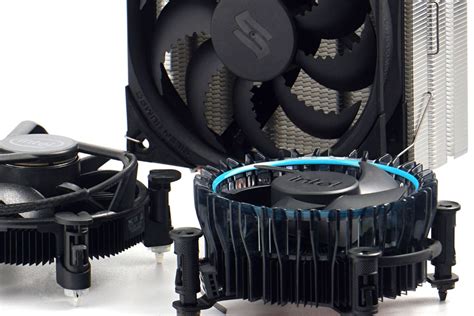
If your stock cooler isn’t cutting it, investing in an aftermarket air cooler or an All-in-One (AIO) liquid cooler is highly recommended. These provide significantly better heat dissipation capabilities, allowing your CPU to run cooler under load.
4. Improve Case Airflow and Cable Management
Ensure you have a balanced intake and exhaust fan setup in your PC case. Generally, front and bottom fans act as intake, while rear and top fans act as exhaust. Tidy up internal cables to prevent them from obstructing airflow paths.

5. Adjust Fan Curves
Many motherboards allow you to customize fan speed curves in the BIOS/UEFI. You can set your fans to spin faster at higher temperatures, providing more aggressive cooling when needed. Software utilities from motherboard manufacturers or fan controllers can also offer this functionality.
6. Consider Undervolting or Underclocking (Advanced)
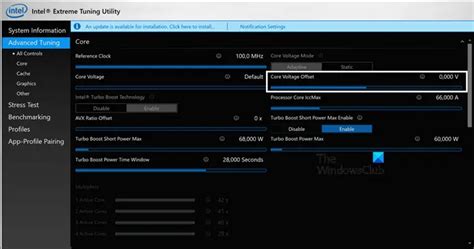
If all else fails, or if you’re pushing hardware limits, undervolting (reducing the voltage supplied to the CPU without sacrificing much performance) or slightly underclocking can reduce heat output with minimal impact on gaming performance, especially when compared to thermal throttling.
Preventative Maintenance for Long-Term Health
Regular maintenance is key. Clean your PC every few months, monitor your temperatures periodically, and ensure your system is placed in a well-ventilated area, away from walls or restrictive enclosures. Proactive care will keep your CPU temperatures in check and your gaming performance consistently high.
Conclusion
High CPU temperatures are a solvable problem. By systematically diagnosing the cause and applying the appropriate fixes – from a simple cleaning and thermal paste reapplication to a cooler upgrade or airflow optimization – you can dramatically improve your gaming experience, eliminate performance bottlenecks, and extend the life of your valuable PC components. Don’t let heat throttle your fun!


