





How to fix sudden FPS drops during PC gaming sessions?
Understanding Sudden FPS Drops
Gaming on a PC offers unparalleled immersion, but nothing breaks that experience faster than sudden Frame Per Second (FPS) drops. These unexpected stutters and freezes can turn an enjoyable session into a frustrating ordeal, often indicating an underlying issue with your system. Identifying and resolving the root cause is key to restoring smooth gameplay.

Diagnosing the Culprit: Common Causes
Overheating Components
One of the most frequent culprits behind sudden FPS drops is overheating. Your CPU and GPU automatically throttle their performance to prevent damage when temperatures climb too high. This thermal throttling manifests as significant frame rate dips.
Outdated or Corrupt Drivers
Graphics card drivers are crucial for optimal gaming performance. Outdated, corrupted, or incompatible drivers can lead to instability and dramatic FPS fluctuations. Similarly, chipset drivers can also play a role.
Background Processes and Resource Hogs
Other applications running in the background can consume valuable CPU, RAM, and GPU resources, leaving less available for your game. Even seemingly innocuous programs can impact performance.
Inadequate Power Delivery or Settings
Incorrect power settings in Windows or an underpowered Power Supply Unit (PSU) can limit your system’s ability to deliver consistent performance, leading to power throttling and FPS drops.
Step-by-Step Solutions to Restore Smooth Gameplay
1. Monitor Temperatures and Ensure Proper Cooling
Use monitoring software like HWMonitor, MSI Afterburner, or NZXT CAM to keep an eye on your CPU and GPU temperatures while gaming. If temperatures consistently exceed 85°C (185°F) for your CPU or 90°C (194°F) for your GPU, you likely have a cooling problem. Ensure your case has good airflow, clean dust from fans and heatsinks, and consider reapplying thermal paste to your CPU and GPU if they are several years old.
2. Update Your Graphics and Chipset Drivers
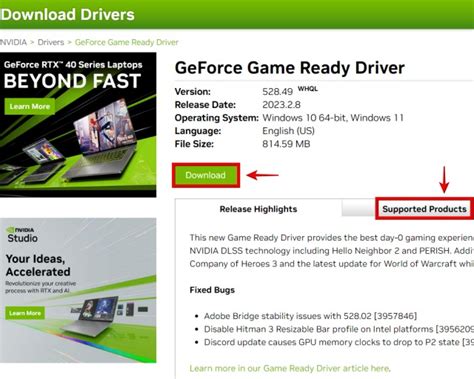
Always keep your GPU drivers up to date. Visit the official websites for NVIDIA, AMD, or Intel to download the latest drivers for your specific graphics card. A clean installation (using DDU – Display Driver Uninstaller) is often recommended to remove any old driver remnants. Also, check your motherboard manufacturer’s website for the latest chipset drivers.
![How To Clean PC Fans [5 Ways To Do It] - Tech4Gamers](/images/aHR0cHM6Ly90czEuZXhwbGljaXQuYmluZy5uZXQvdGg/aWQ9T0lQLmZUeU0yVjNNS0tRUUZrYjVycS1WakFIYUZOJnBpZD0xNS4x.webp)
3. Manage Background Applications and Startup Programs
Open Task Manager (Ctrl+Shift+Esc) and go to the “Processes” tab to see what’s using your CPU, memory, and GPU. Close any unnecessary applications before launching a game. In the “Startup” tab, disable programs that don’t need to run immediately when Windows starts. Also, consider disabling game overlays from platforms like Discord, Steam, or Xbox Game Bar if you suspect they are causing issues.
4. Optimize Power Settings
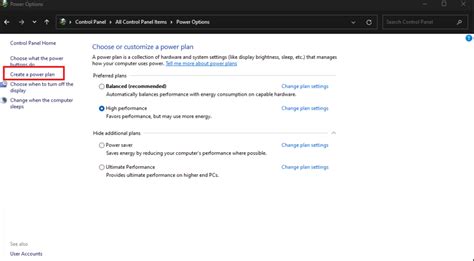
Ensure your Windows power plan is set to “High Performance” or “Ultimate Performance.” Go to Control Panel > Hardware and Sound > Power Options. For NVIDIA GPUs, open the NVIDIA Control Panel, navigate to “Manage 3D settings,” and set “Power management mode” to “Prefer maximum performance.” AMD users can find similar settings in AMD Radeon Software.
5. Adjust In-Game Graphics Settings
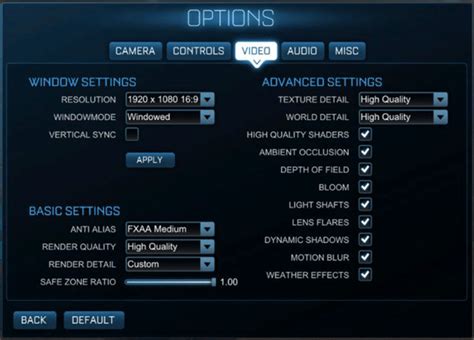
While high settings are desirable, sometimes your hardware can’t consistently maintain them. Experiment with lowering demanding settings such as resolution, texture quality, shadow quality, anti-aliasing, and view distance. Disabling V-Sync if you have a high refresh rate monitor and don’t experience screen tearing, or enabling it if you do, can also impact FPS stability.
6. Scan for Malware and Viruses
Malware can secretly consume system resources, leading to performance degradation. Run a full system scan with reputable antivirus software to rule out any malicious infections.
7. Check for Hardware Issues
- RAM: Ensure RAM modules are properly seated and test them using tools like MemTest86 for errors.
- Storage: If your game is on an HDD, consider moving it to an SSD for faster loading and potentially smoother gameplay. Check drive health with SMART tools.
- PSU: An aging or underpowered PSU might struggle to deliver stable power to components under load, leading to instability. While harder to diagnose without replacement, it’s a possibility.
Conclusion
Sudden FPS drops can be a complex issue with multiple potential causes, but by systematically working through these troubleshooting steps, you can often identify and resolve the problem. Start with the simplest solutions like driver updates and temperature checks, and gradually move to more involved diagnostics. A little patience and methodical investigation will help you get back to enjoying seamless, high-performance PC gaming.


