





How to optimize gaming PC settings for peak FPS in new AAA titles?
Get Ready for Peak Performance: Maximizing FPS in New AAA Titles
New AAA game releases push the boundaries of graphical fidelity, often demanding significant horsepower from your gaming PC. While upgrading hardware is always an option, a well-optimized system can squeeze out crucial extra frames per second (FPS), leading to a smoother, more immersive experience. This guide will walk you through the essential steps to fine-tune your settings for peak FPS in the latest blockbusters.
1. Start with Driver Updates: The Foundation of Performance
The first and most critical step in optimizing your gaming PC is ensuring all your drivers are up to date. Graphics card manufacturers (NVIDIA and AMD) frequently release game-ready drivers that specifically improve performance and stability for new titles. Neglecting this can leave significant FPS on the table.
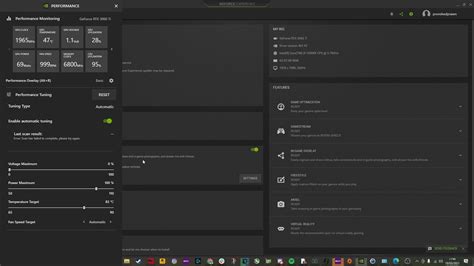
- Graphics Drivers: Download the latest drivers directly from NVIDIA (GeForce Experience) or AMD (Adrenalin Software). Always perform a clean installation to avoid potential conflicts.
- Chipset Drivers: Visit your motherboard manufacturer’s website to ensure your chipset drivers are current. This can improve communication between your CPU, GPU, and other components.
- Monitor Drivers: While less common, ensuring your monitor drivers are up to date can sometimes resolve display-related issues or enable specific features.

2. Optimize Your Graphics Card Control Panel Settings
Your graphics card’s control panel offers a wealth of global settings that can significantly impact performance across all your games. Configuring these correctly can provide a baseline boost before you even launch a game.
NVIDIA Control Panel Settings
- Power Management Mode: Set this to ‘Prefer maximum performance’ under ‘Manage 3D settings’ to ensure your GPU always runs at its highest clock speeds.
- Low Latency Mode: Experiment with ‘On’ or ‘Ultra’ for reduced input lag, especially beneficial in fast-paced games.
- Texture Filtering Quality: Set to ‘High Performance’ if you’re chasing every frame, though ‘Quality’ often has minimal impact on FPS for modern GPUs.
AMD Radeon Software Settings
- Radeon Anti-Lag: Enables your GPU to control the pace of the CPU to reduce input lag.
- Radeon Boost: Dynamically lowers resolution in fast-motion scenes to improve FPS without a noticeable drop in visual quality.
- Radeon Image Sharpening (RIS): If you use render scaling, RIS can help restore crispness to the image.

3. Fine-Tune In-Game Graphics Settings
This is where the most significant FPS gains can often be found. Every game has a unique set of graphics options, and understanding which settings are most demanding is key.
Resolution and Render Scaling
- Native Resolution: Always aim to play at your monitor’s native resolution for the sharpest image.
- Render Scaling/Resolution Scale: If you’re struggling for FPS, lowering this to 80-90% can provide a huge boost at the cost of some clarity. Modern upscaling technologies like DLSS (NVIDIA) and FSR (AMD) offer superior alternatives. Enable these if your GPU supports them.
Visuals That Impact FPS Most
- Shadows: Often one of the most demanding settings. Lowering shadow quality or resolution can yield significant FPS increases.
- Reflections: Real-time reflections (especially screen space reflections or ray-traced reflections) are very costly. Reduce these first.
- Anti-aliasing: MSAA and SSAA are very taxing. TAA is less demanding but can introduce blur. Consider using less aggressive forms or disabling if necessary. DLSS/FSR often include their own anti-aliasing.
- Volumetric Effects (Fog, Clouds): These can be performance hogs. Reducing their quality often has a noticeable FPS impact.
- Ray Tracing: While visually stunning, ray tracing is extremely demanding. Unless you have a high-end RTX or RX 6000/7000 series GPU and are willing to use DLSS/FSR heavily, consider turning it off or to a lower setting.
- Texture Quality: This primarily depends on your GPU’s VRAM. If you have enough VRAM (8GB+ for most AAA titles), you can usually keep textures on High or Ultra with minimal FPS impact. If you experience stuttering, lower it.
- Draw Distance/Object Detail: Affects how far into the distance objects and details are rendered. High settings can be CPU intensive.

4. Operating System and Background Optimizations
Even your operating system can be optimized to dedicate more resources to your games.
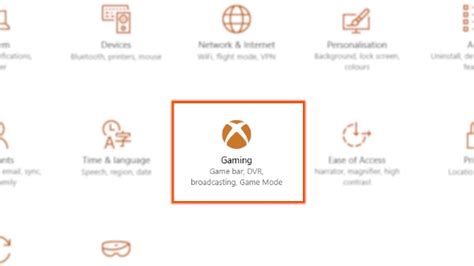
- Windows Game Mode: Ensure Game Mode is enabled in Windows Settings (>Gaming >Game Mode). It prioritizes your game’s resources.
- Power Plan: Set your Windows Power Plan to ‘High Performance’ (or ‘Ultimate Performance’ if available). This prevents your CPU from downclocking during intense gaming sessions.
- Disable Background Apps: Close unnecessary applications running in the background (web browsers, streaming apps, file sync services) before gaming.
- Startup Programs: Review your startup programs (Task Manager >Startup tab) and disable anything non-essential.
- Disk Cleanup: Ensure your game is installed on an SSD for faster loading times. Regularly defragment HDDs (if you still use them for games) or run disk cleanup for SSDs.
5. Monitor Performance and Temperatures
To truly optimize, you need to know what impact your changes are having. Monitoring tools are invaluable for this.
- FPS Counters: Use built-in overlays like NVIDIA GeForce Experience, AMD Radeon Software, or third-party tools like MSI Afterburner (with RivaTuner Statistics Server) to display your current FPS in-game.
- Temperature Monitoring: Keep an eye on your CPU and GPU temperatures. Overheating can lead to thermal throttling, where your components automatically reduce their performance to prevent damage. Good cooling is essential for sustained peak FPS.

Conclusion
Optimizing your gaming PC settings for peak FPS is an ongoing process of tweaking and testing. By systematically updating drivers, configuring your GPU control panel, carefully adjusting in-game settings, and ensuring your operating system is streamlined, you can unlock a significantly smoother and more enjoyable experience in new AAA titles. Remember, the goal is a balance between visual fidelity and consistent frame rates that enhance your gameplay.


