





How to optimize PC airflow for lower gaming temps & silent fans?

The Crucial Role of PC Airflow
In the world of PC gaming, performance is king, but heat is its silent killer. High temperatures can lead to thermal throttling, reduced component lifespan, and a noisy, distracting experience as fans spin up to maximum RPMs. Optimizing your PC’s internal airflow isn’t just about cramming more fans into your case; it’s about creating an efficient, directed current of air that effectively removes heat and keeps your system cool and quiet.
Understanding Air Pressure and Direction
The foundation of good airflow lies in understanding air pressure dynamics within your PC case. There are three main types:
- Positive Pressure: More air enters the case than exits. This helps prevent dust ingress by forcing air out through small gaps, but requires good exhaust.
- Negative Pressure: More air exits the case than enters. This can draw in dust through unfiltered openings and may not be as efficient for cooling all components.
- Balanced Pressure: An equal amount of air enters and exits. This is often the ideal scenario, minimizing dust and maintaining consistent cooling performance.
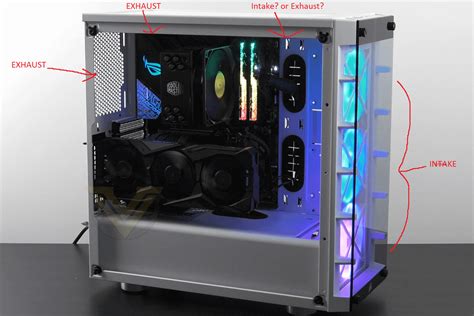
Strategic fan placement is key to achieving the desired pressure and direction. Generally, you want cool air to enter from the front and bottom of the case and hot air to exit from the top and rear, following a natural convection path.
Choosing and Placing Your Fans Wisely
Not all fans are created equal. When selecting fans, consider their size (common sizes are 120mm and 140mm), static pressure (good for radiators or restrictive spaces), and airflow (good for open spaces). Modern cases often support multiple fan configurations, offering flexibility to customize your setup.
Front Intake Fans
These are crucial for pulling cool ambient air into the case. Aim for two to three fans if your case allows, positioned to direct air towards your CPU and GPU.
Rear Exhaust Fans
Typically, a single 120mm or 140mm fan at the rear is used to expel hot air directly out of the case, especially heat generated by the CPU cooler.
Top Exhaust Fans
Many cases also offer top mounting points for exhaust fans. These are excellent for removing hot air that naturally rises, and are often used in conjunction with CPU AIO liquid coolers.
Beyond Fans: Crucial System Components
CPU Cooler
Whether you choose a large air cooler or an All-In-One (AIO) liquid cooler, its efficiency directly impacts CPU temperatures. Ensure proper installation and thermal paste application. If using an AIO, placing its radiator as a top exhaust often yields the best results, though front intake is also an option for maximizing GPU cooling.
GPU Cooling
Your graphics card generates a significant amount of heat. Ensure it has enough space to breathe and isn’t choked by other components or cables. Some GPUs feature open-air designs that benefit from good case airflow, while others use blower-style fans that exhaust heat directly out the back of the case.
The Unsung Heroes: Cable and Dust Management
Cable Management
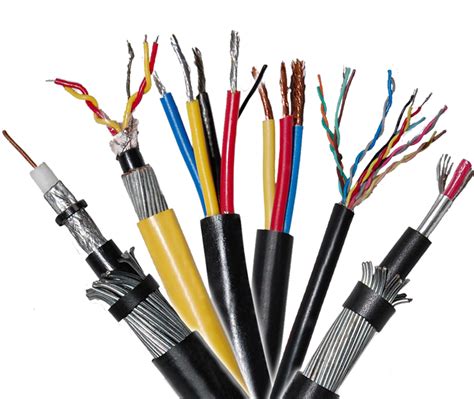
Messy cables are not just an eyesore; they obstruct airflow. Route cables neatly behind the motherboard tray and use zip ties or Velcro straps to keep them out of the main airflow path. This simple step can make a noticeable difference in temperature and fan noise.
Dust Management
Dust acts as an insulator, trapping heat and reducing cooling efficiency. Regularly clean your PC, paying special attention to fan blades, heatsinks, and dust filters. Using cases with good magnetic dust filters on intake points is highly recommended to minimize buildup.

Fine-Tuning with Fan Curves
Once your physical setup is optimized, the next step is to control your fans intelligently. Fan curves, configurable in your motherboard’s BIOS/UEFI or via third-party software, dictate how fast your fans spin based on component temperatures. The goal is to find a balance:
- Low Temps: Fans spin slowly or even stop for silence.
- Medium Temps: Fans ramp up moderately to maintain cool temps without being too loud.
- High Temps (Gaming Loads): Fans spin faster to prevent throttling, accepting a higher noise level for performance.
Experimentation is key here. Start with a gentle curve and gradually increase fan speeds at higher temperatures until you find the sweet spot between cooling performance and acoustic comfort.
Conclusion: A Cooler, Quieter Gaming Experience Awaits
Optimizing PC airflow is a continuous process, but by applying these principles—understanding pressure, strategic fan placement, smart component choices, diligent cable and dust management, and intelligent fan curve tuning—you can significantly improve your PC’s thermal performance. The result will be lower gaming temperatures, a more stable system, and the satisfying silence of well-managed fans, allowing you to immerse yourself fully in your gaming world.


