





How to optimize PC settings for max FPS in modern games?
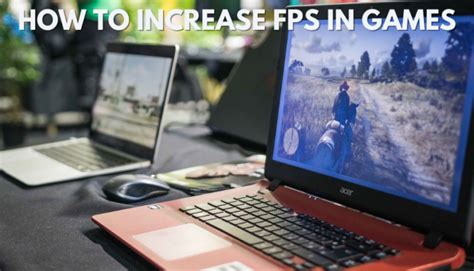
Achieving the highest possible frames per second (FPS) is crucial for a smooth and competitive gaming experience, especially in fast-paced modern titles. While high-end hardware certainly helps, even powerful systems can benefit from proper optimization. This guide will walk you through various PC settings, both in-game and system-wide, to help you squeeze every last frame out of your setup.
1. Optimize In-Game Graphics Settings
This is often the most direct way to impact your FPS. Modern games offer a plethora of graphics options, and understanding what each does can significantly improve performance.
- Resolution: The single biggest factor. Playing at your monitor’s native resolution is ideal, but if FPS is a major struggle, consider lowering it or using resolution scaling features if available.
- Texture Quality: Affects the clarity of textures. High settings require more VRAM. If you have plenty of VRAM (6GB+), you can often set this high without a significant FPS hit.
- Shadow Quality: Shadows are notoriously demanding. Lowering this setting often yields substantial FPS gains for a relatively small visual downgrade.
- Anti-Aliasing (AA): Reduces jagged edges. Techniques like FXAA and TAA are less performance-intensive than MSAA. Experiment to find a balance.
- Post-Processing Effects: Bloom, depth of field, motion blur, and lens flare can be demanding. Disabling motion blur is often recommended for competitive play and can free up FPS.
- View Distance/Draw Distance: Determines how far objects and details are rendered. Lowering this can improve performance in open-world games but may result in pop-in.

2. Update Graphics Drivers Regularly
Your graphics card drivers are the bridge between your hardware and the games you play. NVIDIA, AMD, and Intel frequently release new drivers that include performance optimizations for the latest game titles, bug fixes, and general improvements.
- NVIDIA: Use GeForce Experience to check for and install new drivers.
- AMD: Use AMD Radeon Software to keep your drivers up to date.
- Intel: Download the Intel Driver & Support Assistant for the latest updates.
Always perform a clean installation of new drivers to prevent potential conflicts or issues from older driver remnants.
3. Optimize Windows Settings for Gaming
Your operating system can also be a source of performance bottlenecks. Tweaking a few Windows settings can free up resources for your games.
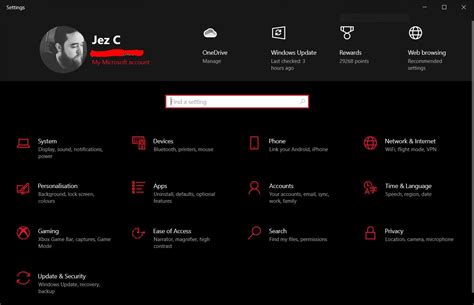
- Game Mode: Windows 10/11’s Game Mode aims to prioritize your game by suspending background tasks. Ensure it’s enabled (Settings > Gaming > Game Mode).
- Power Plan: Set your power plan to ‘High Performance’ or ‘Ultimate Performance’ (for Windows 10/11 Pro/Enterprise or via specific motherboard utilities). This ensures your CPU and GPU aren’t throttled. Access this via Control Panel > Hardware and Sound > Power Options.
- Disable Background Apps: Go to Settings > Privacy > Background apps and turn off apps you don’t need running in the background.
- Visual Effects: In System Properties > Advanced > Performance Settings, select ‘Adjust for best performance’ to disable non-essential visual effects.
- Storage: Ensure your games are installed on an SSD (Solid State Drive) rather than an HDD (Hard Disk Drive) for faster loading times and smoother asset streaming, which can indirectly impact perceived smoothness and stuttering.
4. Overclocking (CPU & GPU)
Overclocking involves pushing your CPU and/or GPU beyond their factory clock speeds to gain extra performance. This can yield significant FPS increases but requires careful monitoring of temperatures and stability.
- GPU Overclocking: Tools like MSI Afterburner or ASUS GPU Tweak allow you to safely adjust core clock, memory clock, and power limits. Start with small increments.
- CPU Overclocking: This is typically done through your motherboard’s BIOS/UEFI settings. Consult guides specific to your CPU and motherboard model.
Always ensure adequate cooling before attempting any overclocking, as increased clock speeds generate more heat.
5. Keep Your PC Clean and Cool
Thermal throttling occurs when components get too hot and automatically reduce their clock speeds to prevent damage, leading to a significant drop in FPS. Proper cooling is paramount.
- Clean Dust: Regularly clean dust from fans, heatsinks, and vents. Dust acts as an insulator, trapping heat.
- Cable Management: Improve airflow inside your case by managing cables neatly.
- Monitor Temperatures: Use software like HWMonitor or NZXT CAM to keep an eye on your CPU and GPU temperatures during gaming.

6. RAM and Storage Optimization
While often overlooked, your RAM and storage can also influence gaming performance.
- RAM Speed & Latency: Faster RAM (DDR4 3200MHz+ or DDR5 6000MHz+) with lower latency can provide a measurable boost, especially with Ryzen CPUs. Ensure XMP/DOCP is enabled in your BIOS to run RAM at its advertised speeds.
- Sufficient RAM: Aim for at least 16GB of RAM for modern gaming. While 8GB might suffice for some older titles, 16GB prevents bottlenecks and stuttering in newer, more demanding games.
- Defragmentation (for HDDs): If you still use an HDD for games, regularly defragging it can help. For SSDs, defragmentation is unnecessary and can reduce drive lifespan.
Conclusion
Optimizing your PC for maximum FPS is an ongoing process that involves a combination of in-game adjustments, system-level tweaks, and proper hardware maintenance. By systematically going through these steps, you can significantly enhance your gaming experience, ensuring smoother gameplay and a competitive edge in your favorite modern titles. Remember that the ideal settings will vary depending on your specific hardware and the game you’re playing, so don’t be afraid to experiment and find what works best for you.


