How to optimize your gaming monitor for high FPS and low input lag?
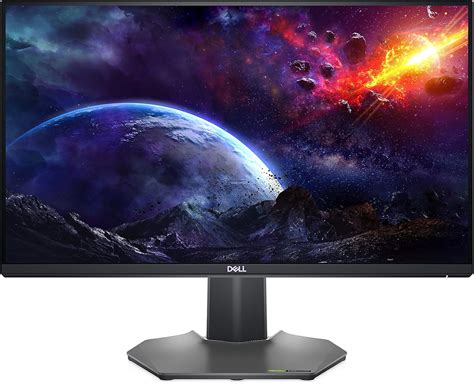
Achieving a smooth, responsive gaming experience isn’t just about a powerful graphics card; your gaming monitor plays an equally crucial role. Optimizing its settings can drastically reduce input lag and ensure you’re seeing every frame your GPU renders. This guide will walk you through the essential steps to get the most out of your display.
Understanding the Pillars: FPS, Input Lag, and Monitor Specs
Before diving into settings, it’s vital to understand what we’re optimizing for:
- High FPS (Frames Per Second): The number of individual images your GPU renders per second. A higher FPS means a smoother, more fluid visual experience.
- Low Input Lag: The delay between an action on your input device (mouse click, keyboard press) and the corresponding visual response on your screen. Lower is always better for competitive gaming.
- Refresh Rate (Hz): How many times your monitor can update the image on the screen per second. A 144Hz monitor can display up to 144 frames per second.
- Response Time (ms): How quickly a pixel can change from one color to another. Lower response times (e.g., 1ms GTG) reduce ghosting and motion blur.
Mastering Your Monitor’s OSD Settings
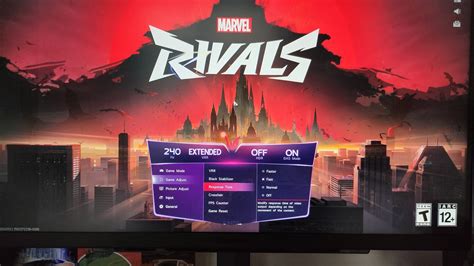
Your monitor’s On-Screen Display (OSD) menu is where most of the magic happens. Navigate it using the physical buttons on your monitor.
1. Set the Correct Refresh Rate
Many high refresh rate monitors don’t automatically default to their maximum. You’ll need to set this both in your monitor’s OSD and your operating system:
- Monitor OSD: Look for a ‘Display,’ ‘Gaming,’ or ‘Picture’ menu and select the highest available refresh rate (e.g., 144Hz, 240Hz).
- Windows: Right-click on your desktop > Display settings > Advanced display settings > Display adapter properties for Display [X] > Monitor tab > Screen refresh rate. Choose the highest option.
- NVIDIA Control Panel: Display > Change resolution > Refresh rate dropdown.
- AMD Radeon Software: Display > Common Display Tasks > Refresh Rate.
2. Enable Adaptive Sync (FreeSync/G-Sync)
If your monitor and GPU support it, enabling Adaptive Sync (NVIDIA G-Sync Compatible/G-Sync, or AMD FreeSync) is crucial. This technology synchronizes your monitor’s refresh rate with your GPU’s frame output, eliminating screen tearing and reducing stuttering without adding significant input lag.
- Monitor OSD: Ensure ‘FreeSync’ or ‘G-Sync Compatible’ is enabled.
- NVIDIA Control Panel: Set up G-SYNC > Enable G-SYNC, G-SYNC Compatible.
- AMD Radeon Software: Display > AMD FreeSync > Enabled.
Optimizing for Responsiveness: Overdrive and Low Input Lag Modes
3. Adjust Response Time (Overdrive/Trace Free)
Most gaming monitors have an ‘Overdrive’ or ‘Response Time’ setting, often with levels like ‘Off,’ ‘Normal,’ ‘Fast,’ or ‘Extreme.’ This speeds up pixel transitions, reducing ghosting. However, too high a setting can introduce inverse ghosting or ‘overshoot.’
- Start with ‘Fast’ or ‘Normal.’
- Test in a fast-paced game. If you see white halos or artifacts behind moving objects, reduce the setting.
- Find the sweet spot that minimizes blur without introducing artifacts.
4. Activate Low Input Lag/Game Mode
Many monitors include a dedicated ‘Game Mode,’ ‘Low Input Lag,’ or ‘Ultra Low Motion Blur (ULMB)’ setting. These modes often bypass certain image processing to reduce latency. ULMB, while reducing motion blur significantly, typically locks the refresh rate and can dim the screen, and may not be compatible with Adaptive Sync.
- Enable ‘Game Mode’ or ‘Low Input Lag’ if available.
- If your monitor has ULMB/Motion Blur Reduction, test it. Decide if the reduced motion blur is worth the trade-offs (potential brightness reduction, no Adaptive Sync).
Beyond the Monitor: GPU Settings and Connectivity
5. Check Your GPU Drivers and Settings
- Update Drivers: Always keep your graphics card drivers up to date for optimal performance and compatibility.
- NVIDIA Control Panel: Manage 3D settings > Low Latency Mode (Ultra for competitive gaming) and Max Frame Rate.
- AMD Radeon Software: Radeon Anti-Lag, Radeon Boost, and Radeon Chill can help manage input lag and frame rates.
6. Use the Right Cables
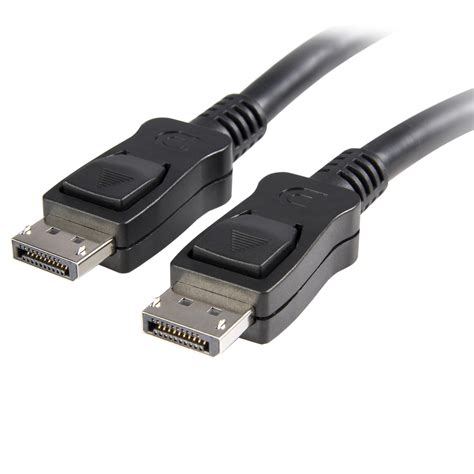
Ensure you’re using a cable that can support your monitor’s maximum refresh rate and resolution:
- DisplayPort (DP): Generally preferred for high refresh rates and resolutions, and required for G-Sync.
- HDMI 2.0/2.1: HDMI 2.0 can handle 1080p at 240Hz, 1440p at 144Hz, or 4K at 60Hz. HDMI 2.1 supports even higher resolutions and refresh rates (e.g., 4K at 144Hz, 8K at 60Hz). Make sure both your GPU and monitor ports are the correct version.
- Avoid older HDMI 1.4 or DVI for high refresh rate gaming.
Calibration and Best Practices
7. Calibrate Your Colors (Optional but Recommended)
While not directly affecting FPS or input lag, proper color calibration ensures your games look as intended. Use your monitor’s OSD settings (brightness, contrast, gamma, color temperature) or Windows Color Calibration for a better visual experience.
8. Test and Refine
After adjusting settings, jump into your favorite games. Pay attention to how the changes feel. It might take a few rounds of tweaking to find the perfect balance for your specific monitor and preferences.
By diligently following these steps, you’ll transform your gaming monitor into a high-performance display, ready to deliver crisp visuals, ultra-low input lag, and the high frame rates you need to dominate the competition.