





How to reduce monitor input lag for competitive online gaming?
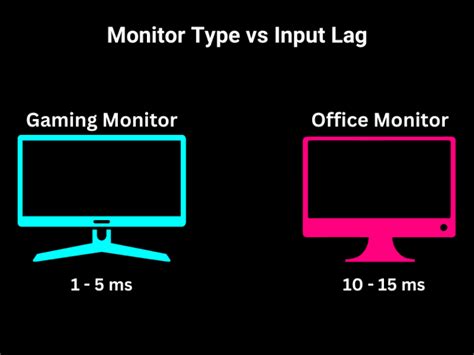
In the high-stakes world of competitive online gaming, every millisecond counts. Input lag, the delay between your action (like a mouse click or keyboard press) and its display on screen, can be the difference between victory and defeat. While often confused with response time or refresh rate, monitor input lag specifically refers to the time it takes for your monitor to process an incoming signal and display it. For serious gamers, minimizing this delay is crucial for peak performance and a truly responsive experience.
What is Monitor Input Lag?
Input lag isn’t just about how quickly your monitor changes pixels (response time) or how many frames it can display per second (refresh rate). It’s the cumulative delay introduced by the monitor’s internal processing of the video signal before it’s presented to you. This processing can include scaling, image enhancement features, and other digital wizardry designed for general viewing, but detrimental to competitive play. Reducing it involves a combination of hardware choices and software optimizations.

Optimize Your Monitor Settings
Your monitor itself holds several keys to unlocking lower input lag.
Enable Game Mode
Most modern gaming monitors come with a “Game Mode” preset. Activating this mode typically bypasses many of the monitor’s image processing functions, drastically reducing input lag. While it might slightly alter color accuracy, the performance gain is invaluable for competitive titles.
Adjust Overdrive/Response Time
Many monitors offer an Overdrive setting, sometimes labeled “Response Time.” This feature speeds up pixel transitions to reduce ghosting. However, setting it too high can introduce inverse ghosting (overshoot artifacts). Experiment with medium or high settings to find the sweet spot that reduces blur without adding unwanted visual glitches.
Maximize Refresh Rate
While not direct input lag, a higher refresh rate (e.g., 144Hz, 240Hz, 360Hz) means the monitor updates the image more frequently, providing a smoother and more current visual representation. This gives you a more up-to-date view of the game state, indirectly contributing to a feeling of lower latency. Ensure your monitor is set to its maximum refresh rate in your operating system’s display settings.
Graphics Card and Driver Optimizations
Your GPU and its drivers play a significant role in the pipeline.
Utilize Low Latency Modes (NVIDIA Reflex, AMD Anti-Lag)
NVIDIA Reflex and AMD Anti-Lag are technologies designed specifically to reduce system latency, including input lag. When enabled in supported games, they optimize the rendering pipeline between the CPU and GPU, ensuring frames are sent to the monitor as quickly as possible. This is one of the most impactful software optimizations you can make.
Manage V-Sync Effectively
V-Sync synchronizes your game’s frame rate with your monitor’s refresh rate to prevent screen tearing. While effective, traditional V-Sync can introduce significant input lag because it forces the GPU to wait. For competitive gaming, it’s generally recommended to:
- Disable V-Sync if your frame rate consistently exceeds your monitor’s refresh rate and you can tolerate minor tearing.
- Use Adaptive Sync (G-Sync/FreeSync) if available, as these technologies eliminate tearing without the input lag penalty of traditional V-Sync.
- If you must use V-Sync, consider “Fast Sync” (NVIDIA) or “Enhanced Sync” (AMD) if available, which aim to reduce latency compared to standard V-Sync.
Operating System and Game-Specific Settings
Don’t overlook the software running on your PC.
Full-Screen Exclusive Mode
Whenever possible, run your games in full-screen exclusive mode rather than borderless windowed mode. Full-screen exclusive allows the game to have direct control over the display, often bypassing some of the operating system’s compositing layers, which can add latency.
Disable Unnecessary Background Processes
Close any applications running in the background that aren’t essential for gaming. These can consume CPU/GPU resources and potentially add to overall system latency.
Game-Specific Optimizations
Check in-game settings for options related to latency or performance. Some games have built-in low-latency modes or graphical settings that can impact responsiveness. Prioritize performance over visual fidelity in competitive scenarios.
Hardware Choices and Connectivity
The right gear makes a difference.
Invest in a Low Input Lag Monitor
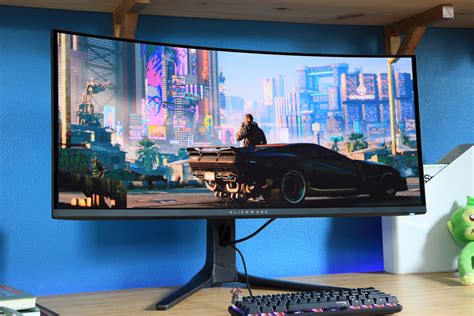
When purchasing a monitor, look for reviews that specifically measure input lag. Monitors designed for competitive gaming prioritize low latency above all else. Brands like ASUS ROG, Acer Predator, BenQ Zowie, and Dell Alienware often excel in this area.
Use DisplayPort or HDMI 2.0+
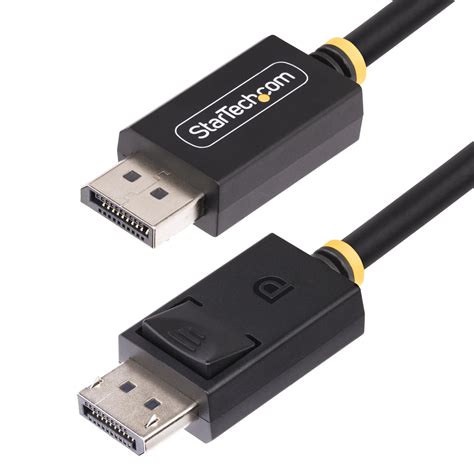
Always use the most capable display connection available. DisplayPort is generally preferred for PC gaming due to its higher bandwidth and support for features like G-Sync. If using HDMI, ensure it’s HDMI 2.0 or newer to support high refresh rates and resolutions without compromise.
Quality Cables
While less common to cause direct input lag, a faulty or low-quality display cable can introduce signal integrity issues that might manifest as visual artifacts or instability. Using certified, high-quality cables ensures a clean signal path.
Conclusion
Minimizing monitor input lag is a multi-faceted endeavor that combines smart hardware choices with careful software configuration. By enabling your monitor’s Game Mode, leveraging GPU-specific low latency technologies, optimizing in-game and OS settings, and ensuring you have the right connectivity, you can significantly reduce the delay between your actions and what you see on screen. This commitment to responsiveness will not only enhance your competitive edge but also make your gaming experience feel smoother, more immediate, and ultimately, more enjoyable.


