





How to vet game mods & community files for safety and compatibility?

Navigating the Wild West of Game Mods Safely
Game modifications (mods) and community-created content can dramatically enhance your gaming experience, adding new features, improving graphics, or even completely transforming gameplay. However, diving into the world of user-generated content isn’t without its risks. Unvetted files can introduce malware, cause game crashes, or lead to system instability. Learning how to properly vet these files is crucial for both your system’s security and your gaming enjoyment.
Source Reliability: Where to Download Your Mods?
The first and most critical step in vetting any mod is evaluating its source. Not all modding sites or community platforms are created equal. Prioritize official modding portals, dedicated Nexus Mods pages, or direct developer-supported marketplaces like the Steam Workshop. These platforms often have moderation teams, user review systems, and sometimes even automated scanning for malicious content. Be wary of obscure forums, direct download links from unknown sources, or sites that seem too good to be true, often promising paid content for free.

User Reviews and Community Feedback
Once you’ve identified a potential mod, delve into its community feedback. Reputable mods will have extensive comment sections, ratings, and active forums. Look for:
- Positive Ratings: A high number of positive ratings and endorsements suggests reliability.
- Active Development: Mods that are regularly updated and supported by their creators are generally safer and more stable.
- Bug Reports: Read through bug reports. Are they minor and addressed, or are there widespread critical issues being reported, especially concerning crashes or system problems?
- Warnings: Pay close attention to any warnings about malware, performance issues, or conflicts with other popular mods.
File Inspection: Before Installation
Even from a trusted source, a quick inspection of the downloaded files is a smart move.
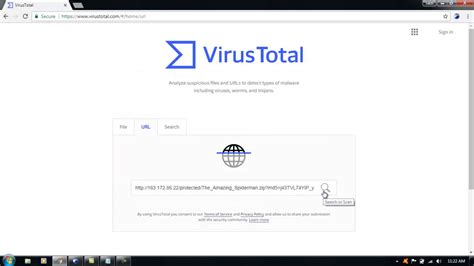
- Antivirus Scan: Always run a full antivirus scan on any downloaded mod archive or installer. Modern antivirus software is adept at detecting common threats.
- File Size Anomalies: Be suspicious if a mod promising a minor tweak is unusually large, or if a significant content pack is suspiciously small.
- File Types: Most mods come as archives (.zip, .rar, .7z) containing game-specific files (.esp, .dll, .pak, .ini). Be extremely cautious with standalone executable files (.exe) unless they are from an absolutely verified and official source.
- Readmes & Instructions: Always read the included README files or installation instructions. They often contain vital information about dependencies, known issues, and proper installation steps.
Ensuring Compatibility with Your Setup
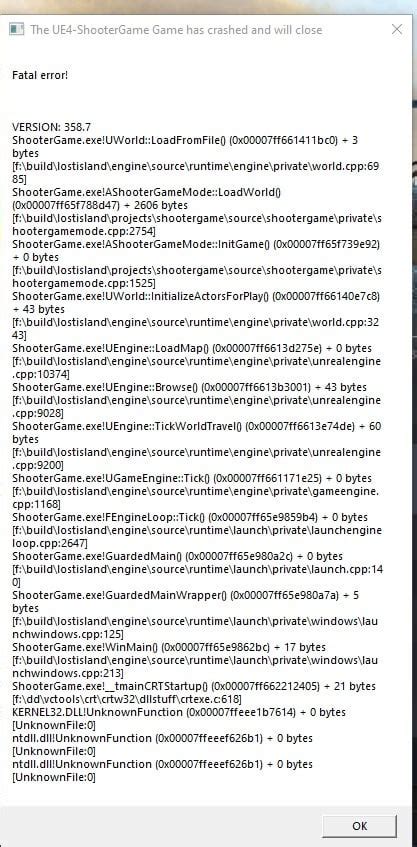
Safety isn’t just about malware; it’s also about preventing game-breaking conflicts. Compatibility is key for a stable modded experience.
- Game Version: Check if the mod is compatible with your current game version. Game updates can often break older mods.
- Mod Dependencies: Many complex mods require other mods or specific tools (like script extenders or mod loaders) to function. Ensure you have all necessary prerequisites installed correctly.
- Mod Conflicts: Some mods modify the same game files, leading to conflicts. Tools like mod managers (e.g., Nexus Mod Manager, Mod Organizer 2, Vortex) are invaluable for identifying and resolving these conflicts, often with built-in conflict detection and resolution features.
- Backup Saves: Before installing any new mod, especially major ones, always back up your game saves. This provides a safety net if something goes wrong.
Best Practices for Installation and Testing
Once you’ve vetted a mod, careful installation and testing are the final steps to ensure a smooth experience.
- Install One Mod at a Time: Install mods incrementally. This way, if an issue arises, you’ll know exactly which mod caused it.
- Use a Mod Manager: For games with extensive modding communities, a dedicated mod manager simplifies installation, uninstallation, and conflict resolution.
- Test Thoroughly: After installing, launch the game and test the mod’s functionality. Play for a while to ensure there are no crashes, performance drops, or unexpected behavior.
- Monitor Performance: Keep an eye on your game’s frame rate and system resources. A poorly optimized mod can significantly degrade performance.
- Know How to Uninstall: Understand the mod’s uninstallation procedure before you install it. Some mods can be simply deleted, while others require specific removal tools or steps.
Conclusion: Modding Smart, Not Hard
While the prospect of sifting through countless files might seem daunting, adopting these vetting practices will save you from potential headaches and security risks. By prioritizing trusted sources, analyzing community feedback, inspecting files, ensuring compatibility, and following smart installation procedures, you can unlock the full, exciting potential of game mods without compromising your system or your peace of mind. Happy modding!


