





Low FPS in new games? Optimize settings and drivers for peak gaming performance.

Is Your Gaming PC Underperforming?
There’s nothing quite as frustrating as firing up a highly anticipated new game, only to be met with choppy frame rates (FPS) that turn an immersive experience into a stuttering mess. Whether you’re running an older rig or a relatively new machine, low FPS can often be resolved without resorting to expensive hardware upgrades. The key lies in strategic optimization of your software and in-game settings. This guide will walk you through the essential steps to diagnose and fix low FPS, helping you achieve smoother, more enjoyable gaming sessions.
Diagnosing the Root Cause of Low FPS
Before diving into solutions, it’s crucial to understand why your frames might be low. The culprits usually fall into a few categories: outdated or corrupted drivers, sub-optimal in-game graphics settings, background applications hogging resources, or, less commonly, hardware limitations. Identifying the primary issue will guide your optimization efforts and save you time.

Driver Optimization: The Foundation of Performance
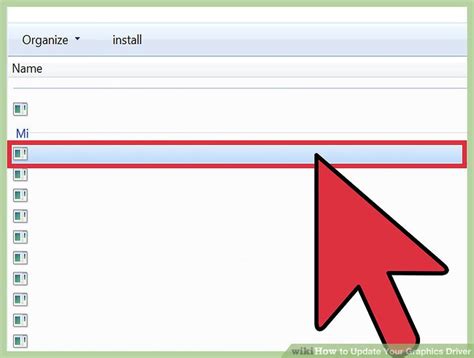
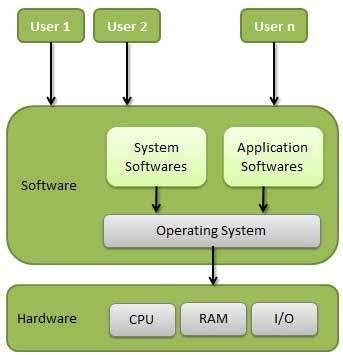
Drivers are the communication bridge between your operating system and your hardware. Outdated or faulty drivers are a leading cause of performance bottlenecks.
1. Graphics Card Drivers
- NVIDIA: Use GeForce Experience or download directly from NVIDIA’s website. Always opt for the ‘clean installation’ option if available.
- AMD: Use AMD Software: Adrenalin Edition or download from AMD’s website.
- Intel: For integrated graphics, drivers are typically updated via Windows Update or Intel’s Driver & Support Assistant.
A fresh, up-to-date graphics driver often provides significant performance boosts and bug fixes, especially for newly released games.
2. Chipset Drivers
Your motherboard’s chipset drivers are equally important, as they manage communication between your CPU, RAM, and other components. Visit your motherboard manufacturer’s website (e.g., ASUS, MSI, Gigabyte, ASRock) and download the latest drivers for your specific model.
3. Windows Updates
Ensure your operating system is fully up to date. Microsoft frequently releases performance enhancements and bug fixes that can impact gaming.
Mastering In-Game Graphics Settings
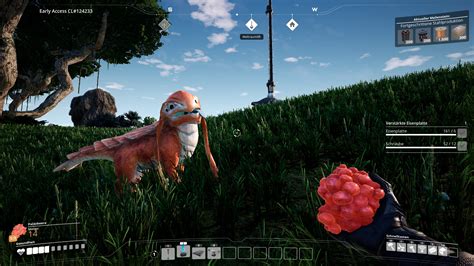
This is where most of your FPS gains will come from. Game developers provide a plethora of settings, and understanding what each does can empower you to find the perfect balance between visual fidelity and performance.
1. Resolution
This is the single biggest determinant of performance. Dropping from 4K to 1440p, or 1440p to 1080p, will yield massive FPS increases. Try to stick to your monitor’s native resolution if possible, but don’t hesitate to experiment with lower resolutions if frames are critically low.
2. Graphics Presets
Most games offer ‘Low,’ ‘Medium,’ ‘High,’ and ‘Ultra’ presets. Start with ‘Medium’ or ‘High’ and adjust individual settings from there. If FPS is still too low, try ‘Low’ and see the impact.
3. Key Individual Settings to Tweak
- Shadow Quality: Often a huge FPS killer. Reducing shadows from Ultra to High or Medium can provide significant gains with minimal visual impact.
- Anti-Aliasing (AA): Techniques like MSAA or TAA smooth jagged edges but are resource-intensive. Experiment with lower settings or even turning it off if your resolution is high enough. FXAA is a lighter alternative.
- Texture Quality: This impacts VRAM usage. If you have a GPU with limited VRAM (e.g., 4GB or less), reducing texture quality can help.
- View Distance/Draw Distance: How far objects and details are rendered. High settings can strain both CPU and GPU.
- Post-Processing Effects: Bloom, depth of field, motion blur, and lens flares can look nice but often come at a performance cost. Consider turning them down or off.
- Ambient Occlusion: Adds realistic shadows where objects meet. Can be demanding.
- HairWorks/TressFX/PhysX: NVIDIA and AMD proprietary technologies that add advanced physics and hair simulation. They are very resource-intensive; disable them if you need FPS.
4. V-Sync, G-Sync, FreeSync
If you experience screen tearing, V-Sync can help, but it introduces input lag and caps your FPS to your monitor’s refresh rate. If you have a G-Sync or FreeSync monitor, enable it for tear-free, low-latency gaming.
System-Level Optimizations for Gaming
Beyond drivers and in-game settings, your operating system and background processes can impact performance.
1. Close Background Applications
Before launching a game, close unnecessary programs like web browsers, streaming apps, cloud storage clients, and any non-essential utilities running in the system tray. Use Task Manager (Ctrl+Shift+Esc) to identify and close resource-intensive apps.
2. Windows Game Mode
Ensure Windows Game Mode is enabled (Settings > Gaming > Game Mode). This prioritizes your game and helps prevent Windows Update from interfering with your session.
3. Power Settings
Go to Power Options in the Control Panel and select ‘High performance’ or ‘Ultimate Performance’ if available. This ensures your CPU and GPU aren’t being throttled to save power.
4. Disk Maintenance
If your games are on an HDD, ensure it’s defragmented regularly. For SSDs, ensure there’s sufficient free space (at least 15-20%) for optimal performance, though defragmentation is not needed.
5. Overclocking (Advanced)
If you’re comfortable with it, a stable overclock of your CPU and/or GPU can provide extra performance. This should be done carefully, with proper cooling and monitoring, and is not recommended for beginners.
When is a Hardware Upgrade Necessary?
After exhausting all software and settings optimizations, if your FPS remains unacceptably low, it might be time to consider a hardware upgrade. Use tools like MSI Afterburner or HWMonitor to check your CPU, GPU, and RAM utilization while gaming. If your GPU is consistently at 99-100% utilization, it’s likely the bottleneck. If your CPU or RAM is maxed out, they might be holding back your GPU.
A new graphics card is typically the most impactful upgrade for gaming performance, followed by a faster CPU and sufficient RAM (16GB is standard for modern gaming). Remember to research compatibility with your existing components.
Conclusion
Low FPS doesn’t have to ruin your gaming experience. By systematically optimizing your drivers, fine-tuning in-game graphics settings, and managing system resources, you can often significantly boost your frame rates and enjoy your favorite titles as they were meant to be played. Take your time, experiment with different settings, and find the perfect sweet spot for your system. Happy gaming!


