Major game update broke mods: How do players troubleshoot conflicts & restore stability?

The Inevitable Clash: Game Updates vs. Modded Playthroughs
Few things are as frustrating for a dedicated gamer as booting up their favorite title after a major update, only to find their carefully curated collection of mods has completely broken the game. A sudden crash to desktop, bizarre visual glitches, or an inability to load saves are common symptoms. This isn’t just an annoyance; it can halt progress and sour the entire gaming experience. Understanding why this happens and, more importantly, how to troubleshoot these conflicts is essential for any player invested in the modding community.
![Geometry Dash Hyper Wave [Unblocked] | Play Online](/images/aHR0cHM6Ly90czIubW0uYmluZy5uZXQvdGg/aWQ9T0lQLmY0aVF4V0pHZGtCa3JTd0psTXZiYWdIYUVLJnBpZD0xNS4x.webp)
Why Do Game Updates Break Mods?
The core reason for mod breakage lies in how games and mods interact. Mods often rely on specific internal game structures, code snippets, and asset paths. When a developer releases a major update, they might:
- Change APIs or Internal Systems: Fundamental changes to how the game handles graphics, physics, or scripting can render mods incompatible.
- Modify File Paths or Names: If a mod looks for a specific file at a specific location, and that location or file name changes, the mod will fail.
- Introduce New Features/Content: New systems can clash with old mod logic, especially if the mod wasn’t designed with these new elements in mind.
- Engine Upgrades: Sometimes, games move to newer versions of their engine, which can have cascading effects on mod compatibility.
Essentially, mods are built on the ‘assumptions’ of a specific game version. When those assumptions change, the mod often falls apart.
Immediate Steps After an Update
Before diving deep into troubleshooting, take a breath and follow these initial guidelines:
- Don’t Panic: This is a common occurrence. The modding community usually rallies to address issues.
- Backup Your Saves: Always, always backup your game saves and potentially your entire game installation directory before attempting any fixes.
- Check Community Forums & Mod Pages: Often, the mod authors or community members will quickly identify which mods are broken, provide workarounds, or announce upcoming updates. This is your first and most valuable resource.
- Disable All Mods: The quickest way to confirm if mods are the culprit is to disable all of them and launch the vanilla game. If it runs stably, you know the problem lies with your mod setup.
Troubleshooting Mod Conflicts: A Step-by-Step Guide
Once you’ve confirmed mods are the issue, it’s time to isolate the problematic ones:
1. Isolate the Culprit(s)
This is often the most time-consuming but effective method. If you have a mod manager, this process is significantly easier:
- Disable All Mods: As mentioned, start with a vanilla game.
- Enable Mods in Batches: If you have many mods, enable them in groups (e.g., 10-20 at a time). Launch the game after each batch. When the game breaks, you’ve narrowed it down to that group.
- Enable Mods One-by-One: Once you’ve found a problematic batch, disable all but one mod from that batch and test. Repeat until you find the exact mod causing the crash or conflict.
- Check Load Order: For games with a strict load order (e.g., Bethesda games), ensure your mod manager has automatically sorted them or manually adjust based on community recommendations.
2. Check for Mod Updates
Once you’ve identified a problematic mod, visit its download page or community forum. Mod authors are usually quick to release compatibility patches or updated versions following a major game update. Download and install any available updates.
3. Verify Game Files
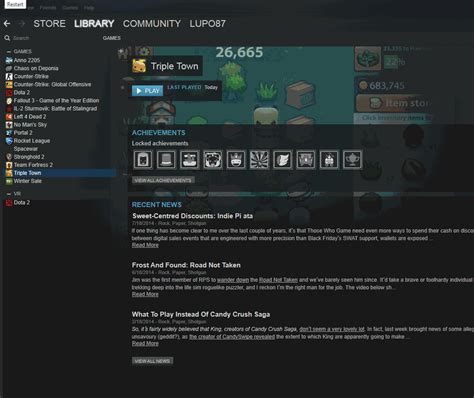
Sometimes, an update can corrupt game files, or a mod installation might have inadvertently altered core game files. Using your game launcher (e.g., Steam, Epic Games Launcher) to “verify integrity of game files” can fix these issues by replacing any corrupt or missing files with fresh ones. Be aware this might undo some manual mod installations, requiring you to reinstall them.
4. Clean Reinstallation (Last Resort)
If all else fails, a complete clean reinstallation of the game and then your mods can be necessary. This ensures no residual files from old mod installations are causing issues. Make sure to manually delete any leftover files in the game directory after uninstalling through the launcher.
Restoring Stability and Preventing Future Headaches
Beyond troubleshooting, there are practices that can help maintain stability:
- Utilize Mod Managers: Tools like Nexus Mod Manager, Vortex, or Mod Organizer 2 are invaluable. They streamline installation, uninstallation, conflict detection, and load order management.
- Follow Mod Author Instructions: Always read the installation instructions, compatibility notes, and known issues sections on mod pages.
- Keep an Eye on Community Discussions: Stay engaged with the modding community for your game. They often share solutions and insights rapidly.
- Consider a Separate Modded Installation: For some games, creating a completely separate game installation specifically for modding can isolate your vanilla game from mod conflicts.

Conclusion: The Ongoing Dance of Development and Creativity
The tension between game updates and mod compatibility is an ongoing challenge in the gaming world. While developers aim to improve their games, these changes can inadvertently disrupt the player-driven content that adds so much value. By understanding the common causes of mod breakage and employing systematic troubleshooting techniques, players can quickly restore their modded experiences, ensuring that the creativity of the modding community continues to thrive. Patience and reliance on the collective knowledge of fellow gamers are your best tools in this journey.