





My gaming PC overheats! How to improve airflow & CPU cooling effectively?
Is your gaming PC struggling with high temperatures during intense sessions, leading to performance drops, stuttering, or even crashes? Overheating is a common enemy for PC gamers, threatening the longevity of components and diminishing your immersive experience. Fortunately, most cooling issues can be resolved with a few strategic adjustments and upgrades. This guide will walk you through the most effective methods to improve your PC’s airflow and CPU cooling, ensuring your system runs smoothly and efficiently.
Understanding PC Airflow Fundamentals
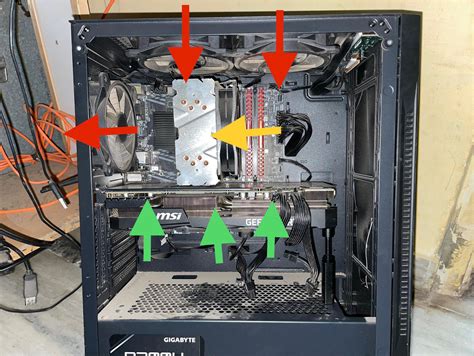
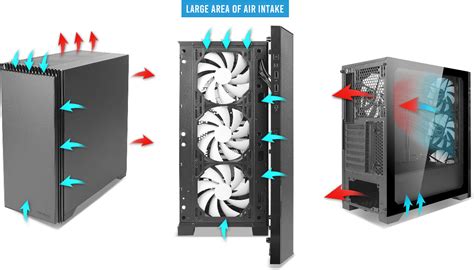
Effective cooling begins with understanding how air moves through your case. The goal is to create a consistent, unidirectional flow of cool air in and hot air out. This typically involves intake fans at the front and bottom, pushing cool air in, and exhaust fans at the top and rear, pulling hot air out. Proper airflow prevents heat from accumulating inside the case, allowing components to run at optimal temperatures.
Optimize Your Case Fans
The number and placement of your case fans are crucial. Aim for a balanced positive or neutral pressure setup, where slightly more air is pulled in than pushed out (positive) or an equal amount (neutral). Too much exhaust can create negative pressure, drawing dust in through unfiltered vents. Ensure fans are oriented correctly – the side with the fan frame and support struts is usually the exhaust side, while the open side is the intake.
- Intake Fans: Typically located at the front and sometimes the bottom of the case. They bring cooler ambient air into the system.
- Exhaust Fans: Usually at the rear and top of the case, expelling hot air that naturally rises.
Tidy Up Your Cables for Unobstructed Airflow
Poor cable management isn’t just an aesthetic problem; it’s a significant airflow impediment. Cables can block the path of air, creating dead zones or forcing air to bypass critical components. Spend time routing cables behind the motherboard tray or through designated grommets. Use zip ties or Velcro straps to bundle them neatly, keeping the main compartment as clear as possible.
Keep It Clean: The Enemy is Dust
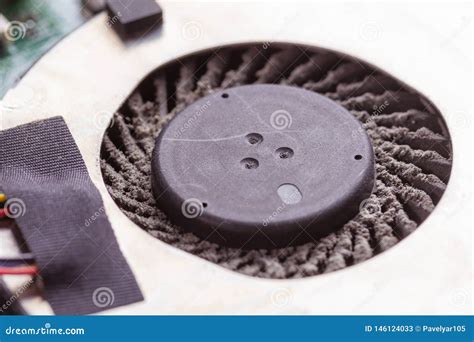
Dust is a silent killer for PC components. It accumulates on fan blades, heatsink fins, and vents, creating an insulating layer that traps heat. This buildup severely restricts airflow and heat dissipation, causing temperatures to soar. Regular cleaning is paramount for maintaining optimal temperatures and component longevity.
How to Clean Your PC Effectively
- Disconnect Power: Always unplug your PC from the wall before cleaning.
- Use Compressed Air: Blow dust out of heatsinks (CPU, GPU) and fan blades. Hold fans gently to prevent over-spinning, which can damage bearings.
- Wipe Surfaces: Use a microfiber cloth to wipe down interior surfaces and hard-to-reach areas.
- Clean Filters: Remove and wash or vacuum dust filters, typically found on intake vents. Ensure they are completely dry before re-installation.
Upgrading Your CPU Cooling Solution
The CPU is often the hottest component, especially during gaming and demanding tasks. Its dedicated cooler is absolutely vital for effective thermal management.
Air Coolers vs. Liquid Coolers (AIOs)
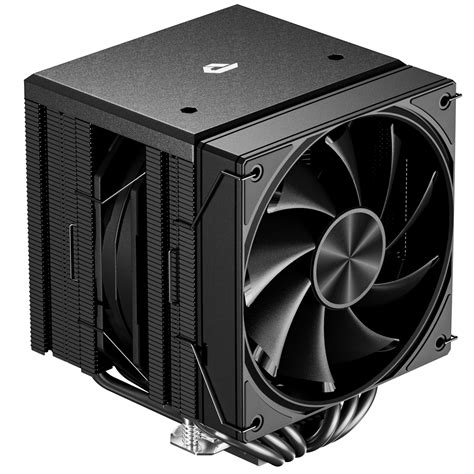
Air Coolers: These use a heatsink with heat pipes to draw heat away from the CPU, which is then dissipated by a fan. High-end air coolers can be very effective, often quieter than some AIOs, and require less maintenance. They are a reliable and cost-effective choice for many gaming setups.
All-in-One (AIO) Liquid Coolers: These use a pump, radiator, and fans to circulate coolant, which absorbs heat from the CPU and dissipates it through the radiator. AIOs often offer superior cooling performance, especially for overclocked or high-TDP CPUs, and can free up space around the CPU socket, improving aesthetics and sometimes overall case airflow.
Reapply Thermal Paste
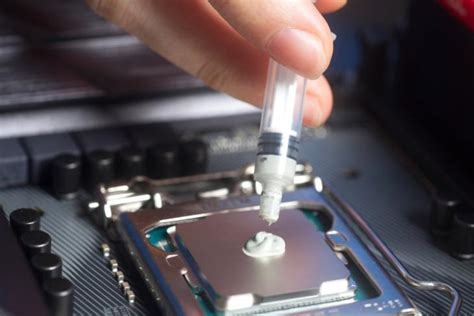
Thermal paste is a crucial interface material between your CPU and its cooler’s cold plate, filling microscopic gaps to improve heat transfer. Over time, it can dry out, crack, or degrade, losing its effectiveness. Reapplying a fresh layer of high-quality thermal paste every few years (or whenever you remove and reinstall your cooler) can significantly improve heat transfer and lower CPU temperatures.
Case Selection and Component Choices
The PC case itself plays a huge role in overall cooling performance. Cases with mesh front panels, ample fan mounts, and intelligent interior layouts generally offer better airflow than those with solid front panels or restrictive designs. When buying new components, consider their thermal performance – some GPUs run hotter than others, and larger CPU coolers require adequate case clearance to fit and perform optimally.
Software Solutions and Monitoring
Beyond hardware, software can help fine-tune your cooling. Utilities from motherboard manufacturers or third-party tools like FanControl allow you to create custom fan curves, adjusting fan speeds based on component temperatures. Regularly monitor your CPU and GPU temperatures using software like HWMonitor, MSI Afterburner, or NZXT CAM to ensure your cooling solutions are working as intended and to catch any potential overheating issues early.
Conclusion
An overheating gaming PC can be a frustrating experience, leading to reduced performance and potential hardware damage. However, with a systematic approach to improving airflow and CPU cooling, you can restore your system’s performance and ensure its longevity. From simple tasks like cleaning dust and managing cables to more involved upgrades like new case fans or a CPU cooler, each step contributes to a cooler, more stable, and more enjoyable gaming rig. Take the time to implement these strategies, and your PC will thank you with sustained peak performance and a longer lifespan.


