





My gaming PC runs hot. How to improve airflow & reduce temps for better FPS & longevity?

The Silent Killer: Why High Temperatures Are a Problem for Your Gaming PC
A gaming PC running hot isn’t just uncomfortable to be around; it’s a silent threat to your system’s performance and longevity. When components like your CPU and GPU overheat, they “throttle” – automatically reducing their clock speeds to prevent damage. This directly translates to lower frame rates (FPS) in your games and a less fluid gaming experience. More critically, sustained high temperatures can significantly shorten the lifespan of your expensive hardware, leading to premature failures.
Improving airflow and reducing temperatures are fundamental steps every PC gamer should take to ensure their rig performs optimally and stands the test of time. Let’s dive into practical strategies.
Understanding Airflow Fundamentals: The Breathing of Your PC
Think of your PC case as a respiratory system. For efficient cooling, it needs clear intake (cool air coming in) and exhaust (hot air going out). Most modern cases are designed with front or bottom intakes and rear or top exhausts. A common and effective setup is to have more intake fans than exhaust fans (creating positive pressure), which helps prevent dust ingress.
- Intake Fans: Typically located at the front or bottom of your case, pulling cool ambient air in.
- Exhaust Fans: Usually at the rear or top, pushing hot air out of the case.
Ensuring a clear path for air to move from front-to-back or bottom-to-top is crucial. Blocked vents or incorrectly oriented fans can trap hot air inside, making your components struggle. Visualizing this flow is key to optimizing your setup.

Immediate Solutions: The Basics You Can Do Today
Dust Removal: The #1 Enemy of Cool Air
Over time, dust accumulates inside your PC, forming insulating layers on heatsinks and obstructing airflow. This is arguably the most common cause of rising temperatures.
- Frequency: Aim to clean your PC every 3-6 months, or more often if you live in a dusty environment.
- Method: Use a can of compressed air or an electric air duster. Hold fan blades gently to prevent them from spinning too fast. Focus on CPU heatsinks, GPU fins, power supply vents, and all case fan grilles.
Declutter and Manage Cables
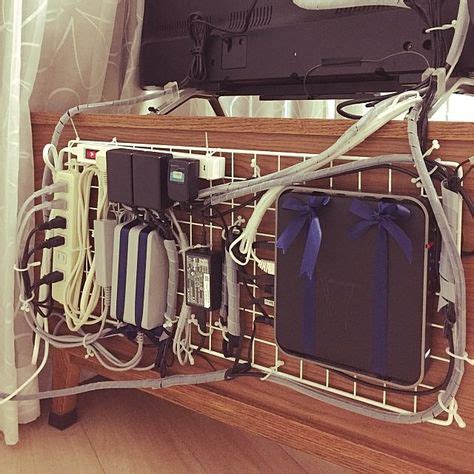
A tangled mess of cables inside your PC acts as an airflow barrier, preventing cool air from reaching components and hot air from escaping efficiently. Proper cable management can make a significant difference.
- Routing: Utilize the cable management channels and tie-down points behind your motherboard tray.
- Ties: Use zip ties or Velcro straps to bundle cables neatly. Keep them away from fan blades and direct airflow paths.
Optimizing Your Fan Setup and Hardware
Upgrade Your Case Fans
Stock case fans are often basic. Investing in higher quality, higher static pressure or higher airflow fans (depending on your case’s design and obstructions) can dramatically improve cooling performance.
- Fan Size: Larger fans generally move more air at lower, quieter RPMs.
- Orientation: Double-check all case fans are oriented correctly for intake or exhaust. Many fans have arrows indicating airflow direction.
Consider an Aftermarket CPU Cooler
The stock cooler that comes with many CPUs (especially non-K Intel CPUs and some AMD CPUs) is often barely adequate for intense gaming loads. An aftermarket air cooler or an All-in-One (AIO) liquid cooler can provide substantially better cooling, allowing your CPU to boost higher and longer without throttling.
- Air Coolers: Generally more affordable and reliable, with large heatsinks and fans.
- AIO Liquid Coolers: Offer excellent performance, often quieter, and can be more aesthetically pleasing.
The Thermal Paste Factor
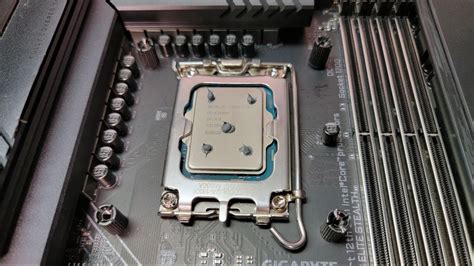
Thermal paste is a crucial interface between your CPU (or GPU) and its cooler, facilitating efficient heat transfer. Old, dried-out, or poorly applied thermal paste can severely impede cooling.
- Reapply: If your CPU temperatures are high even with good airflow, consider carefully removing your CPU cooler, cleaning off old thermal paste with isopropyl alcohol, and applying a fresh layer of high-quality thermal paste.
External Factors and Long-Term Maintenance
Your PC Case Matters
Not all cases are created equal when it comes to airflow. Cases with solid front panels and restricted vents prioritize aesthetics over cooling. For optimal thermal performance, look for cases with mesh front panels, ample fan mounting options, and an open interior design.
Room Temperature and PC Placement
Even the best cooling setup will struggle if your PC is drawing in hot air. Ensure your gaming space is reasonably cool. Avoid placing your PC in enclosed cabinets or directly against walls where exhaust hot air can recirculate back into the intake.
Monitoring Your Temperatures
Regularly monitoring your CPU and GPU temperatures is vital. Tools like HWMonitor, MSI Afterburner, or NZXT CAM allow you to see temperatures in real-time, helping you identify problems before they become critical.

Typically, GPU temperatures below 80°C under load are good, and CPU temperatures below 75-80°C are ideal. These can vary by component, but consistently hitting 90°C+ is a clear warning sign.
Conclusion: A Cooler PC for a Better Gaming Experience
Taking the time to optimize your gaming PC’s airflow and reduce its operating temperatures is one of the most impactful things you can do for your system. Not only will you enjoy more stable frame rates and a snappier overall experience, but you’ll also extend the life of your valuable components, saving you money in the long run. Start with the basics like cleaning and cable management, and then consider hardware upgrades for even greater thermal efficiency. Your PC (and your games) will thank you!


