





My PC won’t boot after installing a new GPU. What should I check first?
Initial Checks: Don’t Panic!
It’s a common and frustrating experience: you’ve just installed a shiny new graphics card, eager to experience improved performance, only for your PC to refuse to boot. Before you despair, remember that many post-installation issues are simple to fix. This guide will walk you through the most crucial first steps to diagnose why your PC isn’t booting after a GPU upgrade.
Check Power Connections
The most frequent culprit for a new GPU failing to display is incorrect or insufficient power. Modern graphics cards, especially mid-to-high-end models, require dedicated PCIe power cables directly from your Power Supply Unit (PSU).
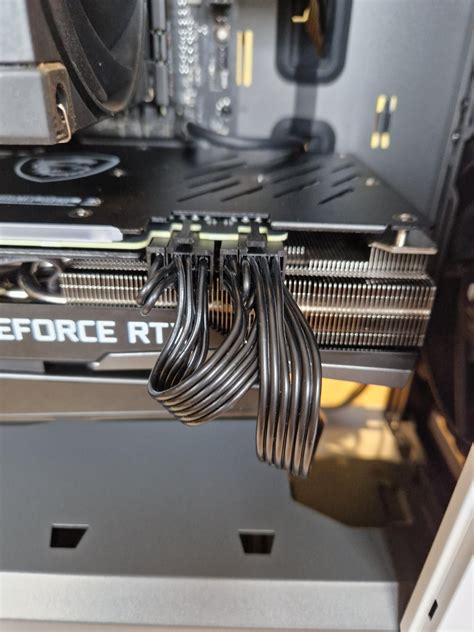
- Is the GPU fully powered? Ensure all necessary 6-pin, 8-pin, or 12-pin PCIe power connectors are firmly seated in the GPU. Some cards require two or even three such connectors.
- Are the cables correctly connected to the PSU? If your PSU is modular, double-check that the correct PCIe power cables are plugged into the appropriate ports on the PSU itself.
- Did you use the correct cables? Never mix and match modular PSU cables from different manufacturers, as this can cause serious damage.
Ensure the GPU is Properly Seated
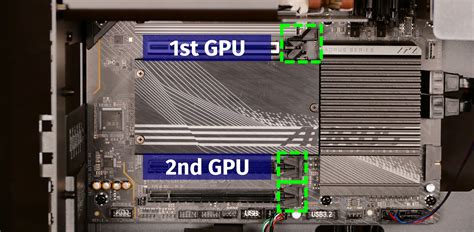
A new GPU needs to be fully and correctly seated into its PCIe slot on the motherboard. Even a slight misalignment can prevent it from being detected or receiving power.
- Re-seat the GPU: Gently but firmly push down on the graphics card until it clicks securely into place. You should hear or feel a click from the retention clip at the end of the PCIe slot.
- Check for obstructions: Ensure no cables or other components are preventing the card from sitting flush in the slot.
- Verify the latch: Make sure the PCIe slot’s latch mechanism (usually at the back end of the slot) is fully engaged and holding the GPU in place.
Verify Display Connections
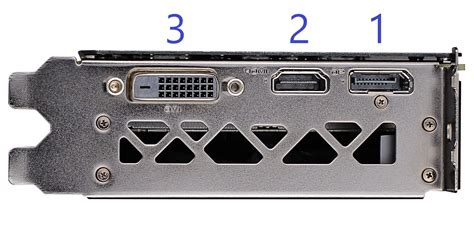
This might sound obvious, but it’s a common oversight, especially after shuffling components around. Ensure your monitor cable is connected directly to the new graphics card’s output ports (HDMI, DisplayPort, DVI) and *not* to the motherboard’s integrated graphics ports.
- Correct port: Plug your monitor cable into one of the output ports on the new GPU.
- Cable integrity: If possible, try a different monitor cable or a different port on the GPU to rule out a faulty cable or port.
Clear CMOS / Reset BIOS
Sometimes, the motherboard’s BIOS/UEFI needs to be reset to properly recognize new hardware, especially a major component like a graphics card. Clearing the CMOS (Complementary Metal-Oxide-Semiconductor) will revert your BIOS settings to their factory defaults.
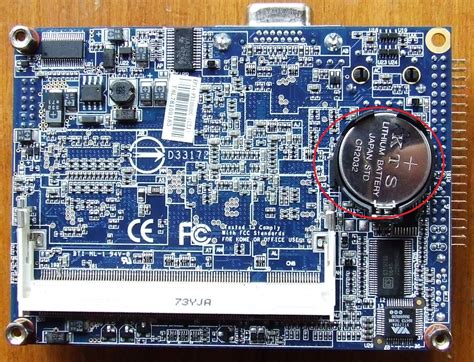
- Method 1 (Jumper): Locate the CLR_CMOS or JBAT1 jumper on your motherboard, usually near the CMOS battery. Move the jumper from pins 1-2 to 2-3 for 5-10 seconds, then move it back. (Consult your motherboard manual for exact location).
- Method 2 (Battery): With the PC powered off and unplugged, remove the small coin-cell battery (CR2032) from the motherboard for about 30 seconds, then reinsert it.
Consider Your Power Supply Unit (PSU)
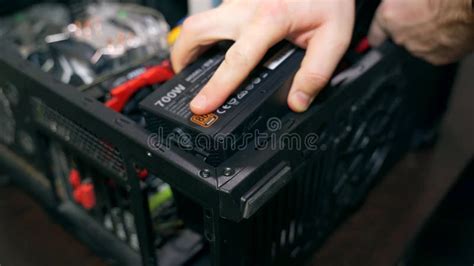
A new, powerful GPU often requires significantly more wattage than its predecessor. If your PSU is old, low-wattage, or simply not powerful enough for the new card, it might not be able to supply the necessary power, leading to a non-booting system or system instability.
- Check wattage requirements: Look up the recommended PSU wattage for your specific new GPU model.
- Compare with your PSU: Check your current PSU’s rated wattage. If it’s borderline or below the recommendation, an upgrade might be necessary.
- PSU failure: In rare cases, the PSU itself might have failed or be failing, and the increased load from the new GPU simply exposed the issue.
Revert to the Old GPU (If Possible)
If all else fails after performing the above checks, temporarily reinstall your old graphics card. If the PC boots normally with the old GPU, it strongly suggests the problem lies with the new graphics card itself, its compatibility with your system, or your PSU’s inability to power it. If the PC still doesn’t boot, the issue might be with another component (like the motherboard or CPU), though less likely immediately after a GPU swap.
Conclusion
Troubleshooting a non-booting PC can be daunting, but by systematically checking power, seating, connections, and system compatibility, you can often pinpoint the problem quickly. Start with the simplest and most common issues, and work your way through the more complex ones. Patience is key, and in most cases, your new GPU will soon be up and running.


