Optimize monitor refresh rate & G-Sync for smooth gaming?

Achieving Flawless Gaming: Understanding Refresh Rate and G-Sync
For any serious gamer, a smooth and responsive visual experience is paramount. Screen tearing, stuttering, and input lag can severely detract from immersion and competitive performance. The key to banishing these frustrations lies in understanding and correctly configuring two critical components of your display setup: your monitor’s refresh rate and adaptive sync technologies like NVIDIA’s G-Sync or AMD’s FreeSync.
This guide will walk you through the essentials, helping you fine-tune your hardware for an unparalleled gaming journey.

What is Monitor Refresh Rate?
Your monitor’s refresh rate, measured in Hertz (Hz), indicates how many times per second the display refreshes its image. A 60Hz monitor, for instance, refreshes 60 times per second. Higher refresh rates mean smoother motion, as more frames are displayed within the same timeframe. While 60Hz was once the standard, modern gaming monitors commonly offer 144Hz, 240Hz, or even higher, delivering a significantly more fluid visual experience, particularly in fast-paced games.
Matching your monitor’s refresh rate to your GPU’s frame output is crucial. If your graphics card renders frames faster than your monitor can display them, you’ll encounter issues.
The Pains of Screen Tearing and Stuttering
Screen tearing occurs when your graphics card sends new frames to your monitor faster or slower than the monitor’s refresh cycle. This results in the display showing parts of two different frames simultaneously, creating a visible horizontal ‘tear’ across the screen. It’s distracting and breaks immersion.
Stuttering, on the other hand, happens when frame rates fluctuate significantly or drop below the refresh rate. This creates a jerky, inconsistent motion that can make games feel unresponsive and frustrating.
Enter G-Sync and FreeSync: Adaptive Sync Technologies
This is where adaptive sync technologies come into play. NVIDIA’s G-Sync and AMD’s FreeSync are proprietary solutions designed to eliminate screen tearing and stuttering by synchronizing your monitor’s refresh rate directly with your graphics card’s frame output.
- How they work: Instead of the monitor refreshing at a fixed rate, it dynamically adjusts its refresh rate to match the exact frames per second (FPS) your GPU is currently producing. If your GPU renders 90 FPS, your monitor refreshes at 90Hz. If it drops to 65 FPS, the monitor also drops to 65Hz.
- The benefit: This perfect synchronization ensures that each frame is displayed completely and only once, leading to incredibly smooth, tear-free, and stutter-free gameplay, even when frame rates fluctuate.

Setting Up and Optimizing Your Display
1. Verify Monitor and GPU Compatibility:
Ensure your monitor supports G-Sync (or ‘G-Sync Compatible’) if you have an NVIDIA GPU, or FreeSync if you have an AMD GPU. You’ll also need a DisplayPort cable (or HDMI for some FreeSync monitors) to enable these features.
2. Enable High Refresh Rate in Windows:
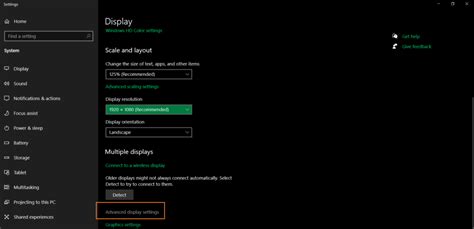
- Right-click on your desktop and select ‘Display settings’.
- Scroll down and click ‘Advanced display settings’.
- Choose your primary monitor from the dropdown.
- Click ‘Display adapter properties for Display 1’.
- Go to the ‘Monitor’ tab and select your monitor’s highest available refresh rate from the ‘Screen refresh rate’ dropdown. Click ‘Apply’ and ‘OK’.
3. Configure G-Sync (NVIDIA):
- Right-click on your desktop and open the ‘NVIDIA Control Panel’.
- Under ‘Display’, click ‘Set up G-SYNC’.
- Check ‘Enable G-SYNC, G-SYNC Compatible’.
- Select your G-Sync compatible display.
- Choose ‘Enable for full screen mode’ (or ‘Enable for windowed and full screen mode’ if you play in windowed mode).
- Go to ‘Manage 3D settings’, then ‘Global Settings’.
- Set ‘Monitor Technology’ to ‘G-SYNC’ (or ‘G-SYNC Compatible’).
- It’s often recommended to also set ‘Max Frame Rate’ to 3 FPS below your monitor’s maximum refresh rate to prevent G-Sync from disabling at the very top end.
4. Configure FreeSync (AMD):
- Right-click on your desktop and open ‘AMD Radeon Software’.
- Click the ‘Gear’ icon (Settings) in the top right.
- Go to the ‘Display’ tab.
- Ensure ‘Radeon FreeSync’ is set to ‘Enabled’ for your primary monitor.
- Like G-Sync, it’s generally good practice to use in-game frame rate limiters or Radeon Chill to cap your FPS just below your monitor’s maximum refresh rate.
5. In-Game Settings:
- Disable V-Sync: With G-Sync or FreeSync enabled, traditional V-Sync is no longer needed and can actually introduce input lag. Ensure it’s off in your game settings.
- Frame Rate Cap: While adaptive sync handles fluctuations, capping your in-game frame rate slightly below your monitor’s maximum refresh rate (e.g., 141 FPS for a 144Hz monitor) can prevent hitting the upper limit where adaptive sync might temporarily disengage, ensuring it stays active for maximum smoothness.
Conclusion
Optimizing your monitor’s refresh rate and leveraging adaptive sync technologies like G-Sync or FreeSync are crucial steps toward achieving the smoothest and most immersive gaming experience possible. By ensuring your display and graphics card are perfectly synchronized, you can banish screen tearing and stuttering, allowing you to fully appreciate the stunning visuals and responsive gameplay that modern titles offer. A little time spent in your display settings can lead to a world of difference on the battlefield, the race track, or wherever your virtual adventures take you.