





PC gets hot while gaming. How to optimize airflow & CPU/GPU temps?

The Silent Killer: Why Your PC Overheats While Gaming
Gaming pushes your PC’s components to their limits, generating significant heat. When your CPU and GPU temperatures soar, it’s not just a minor inconvenience; it can lead to performance throttling, system instability, and even long-term damage to your valuable hardware. Understanding why your PC gets hot is the first step towards creating a cool, efficient gaming rig.
Modern games demand substantial processing power from both your Central Processing Unit (CPU) and Graphics Processing Unit (GPU). As these components work harder, they convert electrical energy into computational work, and a byproduct of this process is heat. Without adequate cooling and efficient airflow, this heat accumulates within your PC case, turning it into a miniature oven.
Mastering Internal Airflow: The Foundation of Good Cooling
Optimal airflow is paramount for keeping your PC components cool. It’s about more than just having fans; it’s about directing air efficiently through the case to draw in cool air and expel hot air.
1. Fan Configuration: Intake vs. Exhaust
Most PC cases have multiple fan mounts. A common and effective setup involves positive pressure, where more air is drawn into the case (intake) than expelled (exhaust). This helps keep dust out. Alternatively, negative pressure (more exhaust than intake) can also work, but tends to accumulate more dust. A balanced pressure system is often ideal.
- Intake Fans: Typically located at the front or bottom of the case, pulling cool air from outside.
- Exhaust Fans: Usually at the rear or top, pushing hot air out of the case.
2. Cable Management: Unrestricted Pathways
Cluttered cables act as barriers, impeding airflow. Take the time to route your cables neatly behind the motherboard tray or along the edges of the case. This seemingly small detail can significantly improve air circulation.
3. Regular Dusting: The Silent Killer of Airflow
Dust is insulation. Over time, it accumulates on fan blades, heatsinks, and ventilation grilles, drastically reducing cooling efficiency. Regularly clean your PC with compressed air, paying close attention to CPU and GPU heatsinks, case fans, and PSU vents.
Targeting CPU Temperatures: Cool Processing Power
Your CPU is the brain of your operation, and keeping it cool is vital for consistent gaming performance.
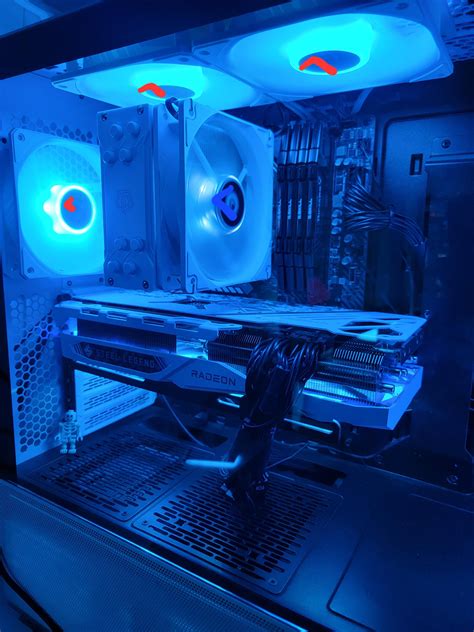
1. CPU Cooler Selection: Beyond Stock
While stock coolers are adequate for basic tasks, they often struggle under heavy gaming loads. Upgrading to an aftermarket CPU cooler is one of the most impactful cooling improvements you can make.
- Air Coolers: Large heatsinks with powerful fans are highly effective and generally more affordable.
- All-in-One (AIO) Liquid Coolers: Offer excellent thermal performance and can be aesthetically pleasing, routing heat away to a radiator.
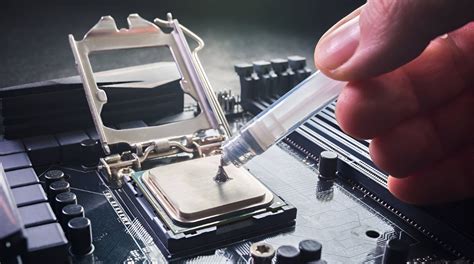
2. Thermal Paste Application: The Interface Matters
Thermal paste fills microscopic gaps between your CPU’s Integrated Heat Spreader (IHS) and your cooler’s base, ensuring maximum heat transfer. Old or improperly applied thermal paste can severely hinder cooling. Reapplying fresh, high-quality thermal paste every few years is a good maintenance practice.
GPU Cooling: Keeping Graphics Performance High
The GPU is often the hottest component in a gaming PC. Effective GPU cooling is crucial for maintaining frame rates and preventing crashes.
1. Custom Fan Curves: Take Control
Many GPU utility software (e.g., MSI Afterburner, EVGA Precision X1) allow you to create custom fan curves. This lets you increase fan speeds at lower temperatures than the default settings, proactively managing heat. Experiment to find a balance between cooling performance and noise levels.
2. Dusting the GPU Heatsink: Direct Impact
Similar to the CPU, the GPU’s heatsink and fans can become clogged with dust. Use compressed air to carefully clean the fins and fan blades of your graphics card. If comfortable, you can even remove the shroud for a more thorough cleaning (consult your GPU’s warranty first).

Beyond the Case: Environment & Monitoring
Sometimes, the problem isn’t just inside your PC.
1. Room Temperature & PC Placement
A hot room means your PC has to work harder to cool itself. Ensure your PC is in a well-ventilated area, not cramped in a cabinet or against a wall. Give it room to breathe.
2. Monitoring Tools: Know Your Temps
Regularly use software like HWMonitor, HWiNFO64, or your motherboard’s monitoring utilities to keep an eye on CPU and GPU temperatures during gaming. This data is invaluable for diagnosing issues and verifying the effectiveness of your cooling solutions. Aim for CPU temps below 80°C and GPU temps below 85°C under load, though lower is always better.
Advanced Tips for the Enthusiast
For those looking to squeeze every drop of cooling performance or efficiency:
- Undervolting: Reducing the voltage supplied to your CPU or GPU while maintaining performance can significantly lower heat output with minimal performance loss.
- Custom Water Cooling: For ultimate thermal performance and aesthetics, a custom loop offers superior cooling potential but requires significant investment and expertise.

Conclusion: Stay Cool, Game On
High temperatures are a formidable enemy of PC performance and longevity. By systematically optimizing your PC’s airflow, upgrading cooling components where necessary, and committing to regular maintenance, you can ensure your CPU and GPU stay within safe operating limits, providing a smoother, more reliable gaming experience for years to come. Don’t let heat be the bottleneck in your gaming adventures.


