





Troubleshooting stuttering in PC games: What are the first steps?
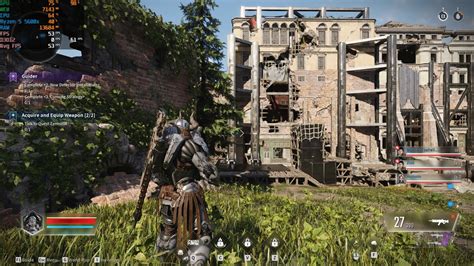
Few things are more frustrating for a PC gamer than experiencing persistent stuttering. What should be a smooth, immersive experience turns into a jarring slideshow, breaking immersion and often leading to competitive disadvantage. Before diving into complex solutions, it’s crucial to systematically go through the fundamental first steps. Often, the culprit is something surprisingly simple. Let’s break down where to begin your troubleshooting journey to get your games running smoothly again.
1. Verify System Requirements and Update Drivers
This might seem obvious, but it’s the most common oversight. Always ensure your PC meets or exceeds the game’s minimum and recommended system requirements. Pay close attention to your CPU, GPU, and RAM specifications.
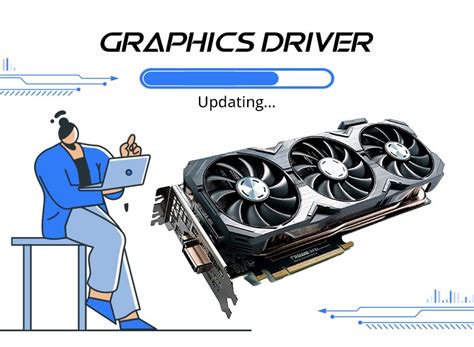
Update Your Graphics Drivers
Outdated or corrupt graphics drivers are a leading cause of performance issues, including stuttering. Always download the latest stable drivers directly from NVIDIA, AMD, or Intel’s official websites. Perform a clean installation, removing previous driver versions if possible.
Update Windows and Game
Ensure your operating system is fully up to date. Windows updates often include critical performance enhancements and bug fixes. Similarly, check if the game itself has any pending updates or patches, as developers frequently release fixes for known performance issues.
2. Monitor Your System’s Performance
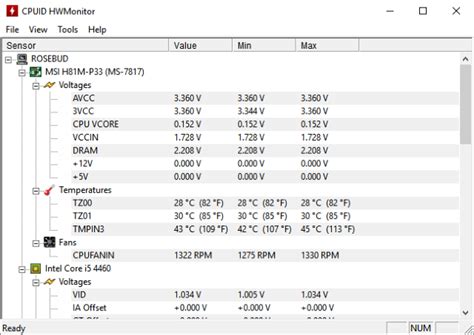
Before making any changes, it’s vital to understand what’s happening under the hood when stuttering occurs. Tools like MSI Afterburner (with RivaTuner Statistics Server), NZXT CAM, or even Windows Task Manager can provide invaluable data.
Look for Bottlenecks
- CPU Usage: Is your CPU consistently at or near 100% when stuttering?
- GPU Usage: Is your GPU usage erratic, dropping significantly during stutters, or is it also at 100%?
- RAM/VRAM Usage: Are you hitting your RAM or GPU’s VRAM capacity?
- Temperatures: Are your CPU or GPU temperatures excessively high (e.g., above 85-90°C)? Thermal throttling can cause severe stuttering.
3. Adjust In-Game Graphics Settings
Sometimes, your system is simply being pushed too hard. Experiment with lowering various in-game graphics settings, even if your hardware should theoretically handle them. This helps isolate if the issue is purely performance-related.
Key Settings to Adjust First:
- Resolution: Lowering your display resolution is one of the most impactful changes.
- Texture Quality: High texture quality demands a lot of VRAM.
- Shadows: Shadows can be very demanding on the GPU.
- Anti-Aliasing: Settings like MSAA, FXAA, TAA can be heavy GPU stressors.
- V-Sync/G-Sync/FreeSync: Experiment with turning V-Sync off, or ensuring G-Sync/FreeSync is properly configured and enabled if you have a compatible monitor.
- Display Mode: Try switching between Fullscreen, Borderless Windowed, and Windowed mode.

4. Basic Hardware and Storage Checks
Physical aspects of your PC can also contribute to stuttering.
Check Temperatures and Cooling
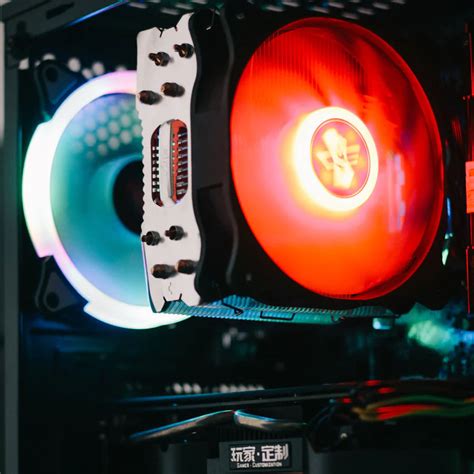
As mentioned, high temperatures can cause components to throttle. Ensure your CPU cooler and GPU fans are clean and functioning correctly. Check case airflow; sometimes, simply opening your case side panel can offer a temporary diagnostic.
Verify Game Installation Drive
Is the game installed on an SSD (Solid State Drive) or an HDD (Hard Disk Drive)? Installing games on an SSD significantly reduces loading times and can prevent stuttering related to asset streaming, especially in open-world games. If it’s on an HDD, check its health and defragment it if necessary (though not for SSDs).
Close Background Applications and Overlays
Many applications running in the background can consume valuable CPU, RAM, or GPU resources, leading to stuttering. Close web browsers, Discord, streaming apps, and any unnecessary software. Also, disable overlays from Discord, Steam, NVIDIA GeForce Experience, or Xbox Game Bar as they can sometimes interfere with game performance.
Conclusion
By systematically working through these initial troubleshooting steps, you can often identify and resolve the root cause of stuttering in your PC games. Remember to test after each significant change to pinpoint the exact solution. If these steps don’t resolve the issue, you’ve at least gathered valuable diagnostic information that can help you move on to more advanced troubleshooting techniques or seek further assistance.


