





What are the best GPU settings for max FPS in competitive games?

The Quest for Frames: Why GPU Optimization Matters
In the high-stakes world of competitive gaming, every frame per second (FPS) counts. Higher FPS translates to smoother visuals, reduced input lag, and a more responsive gameplay experience, giving you a crucial edge over opponents. While a powerful GPU is the foundation, correctly configuring its settings can unlock significant performance gains without needing to upgrade hardware. This guide will walk you through the essential GPU and system settings to maximize your FPS.
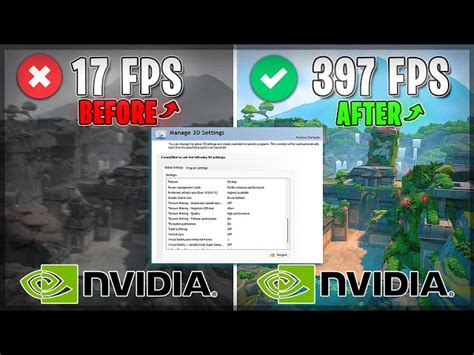
NVIDIA Control Panel & AMD Radeon Software Settings
Your GPU driver software is the primary control hub for global graphics settings. Tweaking these can have a profound impact across all your games.
Common Driver Settings for Max FPS:
- Power Management Mode (NVIDIA): Set to ‘Prefer maximum performance’. This ensures your GPU consistently operates at its highest clock speeds.
- Texture Filtering Quality (NVIDIA): Choose ‘High performance’. This prioritizes frame rate over subtle texture detail.
- Low Latency Mode (NVIDIA) / Anti-Lag (AMD): Enable this (set to ‘Ultra’ for NVIDIA, ‘Enabled’ for AMD). It helps reduce input lag by submitting frames just-in-time for the GPU to process.
- Anisotropic Filtering: Set to ‘Application-controlled’ or ‘Off’. In competitive titles, texture clarity at a distance is less critical than raw performance.
- Vertical Sync (V-Sync): Turn ‘Off’. V-Sync synchronizes your frame rate with your monitor’s refresh rate to prevent screen tearing, but it introduces input lag. For competitive play, it’s almost always detrimental. If screen tearing is unbearable, consider an adaptive sync monitor (G-Sync/FreeSync).
- Image Sharpening (AMD) / NVIDIA Image Scaling: Generally keep ‘Off’ for maximum FPS. These can add a slight processing overhead.
- Shader Cache (NVIDIA/AMD): Leave ‘Driver Default’ or ‘On’. This helps reduce load times and stuttering by storing compiled shaders.
In-Game Graphics Settings
Once you’ve optimized your drivers, diving into specific game settings is the next critical step. The goal here is to reduce the graphical load on your GPU without significantly hindering your ability to see enemies or navigate the environment.
Prioritize These Settings:
- Resolution: Play at your monitor’s native resolution (e.g., 1920×1080). Reducing resolution can increase FPS significantly but makes the image blurry, potentially hindering visibility.
- Render Scale / Resolution Scale: If your game has this option, set it to 100% or lower only if desperate for frames. Lowering it renders the game at a sub-native resolution and then upscales it, making everything blurry.
- Texture Quality: This often has a minimal impact on FPS if you have sufficient VRAM (4GB+). You can usually keep this on medium-high without much penalty.
- Shadows: This is one of the biggest FPS killers. Set shadow quality to ‘Low’ or ‘Off’. High-quality shadows are compute-intensive.
- Anti-Aliasing (AA): Techniques like MSAA or SSAA are very demanding. Opt for ‘FXAA’, ‘SMAA’, or ‘Off’. If you have a high-resolution monitor, you might not need AA at all.
- Post-Processing Effects (Bloom, Motion Blur, Depth of Field, Lens Flare): Turn ‘Off’ completely. These effects not only consume resources but can also obscure your vision during intense moments.
- Reflections: Set to ‘Low’ or ‘Off’. Real-time reflections are resource-heavy.
- Ambient Occlusion (SSAO, HBAO): Turn ‘Off’. This adds realistic shadows to corners and crevices but is demanding.
- View Distance: Depending on the game, this can be important for spotting distant enemies. Find a balance – medium is often a good compromise.
- Particle Effects: Set to ‘Low’. Complex particles can cause frame drops during explosions or spell effects.

Windows & System Settings
Beyond your GPU and game, your operating system also has settings that can influence performance.
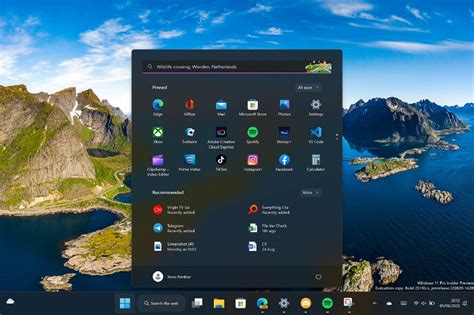
- Game Mode (Windows 10/11): Ensure ‘Game Mode’ is enabled in Windows Settings > Gaming > Game Mode. This prioritizes your game’s resources.
- Hardware-accelerated GPU scheduling (Windows 10/11): Located in Graphics settings. Enable this feature, as it can reduce latency and improve performance on compatible hardware. Requires a restart.
- Power Plan: Set your Windows power plan to ‘High performance’ or ‘Ultimate performance’ (if available). This prevents your CPU and GPU from throttling.
- Background Apps: Disable unnecessary background applications, especially those that consume CPU or network resources. Go to Windows Settings > Privacy > Background apps.
- Windows Updates: Keep your OS updated, but consider pausing updates during crucial gaming sessions to prevent unexpected restarts or background downloads.
Additional Tips for Maximizing FPS
- Keep Drivers Updated: Regularly check for new GPU driver releases. Manufacturers often include performance optimizations for new game titles.
- Monitor Temperatures: Overheating components can lead to throttling, reducing performance. Use monitoring software (e.g., MSI Afterburner, HWiNFO) to keep an eye on CPU and GPU temperatures. Ensure good airflow in your case.
- Close Background Applications: Before launching a game, close web browsers, streaming apps, and any other programs not essential for your game.
- Disable Overlays: In-game overlays from Discord, Steam, NVIDIA GeForce Experience, or AMD Radeon Software can sometimes cause performance issues or stuttering. Disable them if you experience problems.
- BIOS Settings (Advanced): Ensure XMP/DOCP is enabled for your RAM to run at its advertised speeds. Some motherboards have a ‘Game Boost’ or ‘OC Genie’ feature, but these can be unstable.
- Consider Overclocking: If you’re comfortable, a stable GPU and CPU overclock can provide a few extra frames, but always proceed with caution and proper research.
By systematically going through these GPU and system settings, you can significantly boost your FPS in competitive games, resulting in a smoother, more enjoyable, and ultimately, more successful gaming experience. Remember to test settings changes incrementally to understand their impact and find the optimal balance for your specific system and games.



