





What GPU driver settings boost FPS most for competitive gaming?
In the high-stakes world of competitive gaming, every frame per second (FPS) and millisecond of input lag can mean the difference between victory and defeat. While powerful hardware is a solid foundation, fine-tuning your GPU’s driver settings can unlock significant performance gains, ensuring your system runs at its absolute peak when it matters most.
Understanding the Impact of Driver Settings
Your GPU driver acts as the translator between your operating system, games, and graphics card. Default settings are often a compromise between performance, quality, and power consumption. For competitive gaming, the goal is unequivocally maximum performance and lowest latency, often at the expense of visual fidelity that, in competitive scenarios, is less critical than responsiveness.
Adjusting specific settings within your GPU’s control panel—whether NVIDIA Control Panel or AMD Radeon Software—can directly influence how your graphics card renders frames, manages power, and reduces processing delays. These tweaks can free up valuable GPU cycles, translating into higher FPS and a more responsive gaming experience.
Essential NVIDIA Control Panel Settings for Maximum FPS
NVIDIA users have a dedicated control panel that offers granular control over their GPU. Here are the key settings to prioritize:
- Power Management Mode: Prefer Maximum Performance
This is arguably the most impactful setting. It ensures your GPU always runs at its highest clock speeds, preventing it from downclocking to save power, which can cause frame rate drops. - Texture Filtering – Quality: High Performance
Sacrificing a tiny bit of visual quality for a noticeable FPS boost. This setting reduces the fidelity of texture filtering algorithms, making them less demanding on the GPU. - Low Latency Mode: Ultra
Designed to reduce input lag by limiting the number of frames queued by the CPU. Ultra mode offers the most aggressive reduction, directly translating to snappier controls. - Shader Cache Size: Unlimited
Allows the driver to store an unlimited amount of compiled shaders on your drive, which can reduce stuttering and loading times in games. - Vertical Sync (V-Sync): Off
Unless you are experiencing severe screen tearing and do not have G-Sync/FreeSync, V-Sync introduces input lag by synchronizing your GPU’s output with your monitor’s refresh rate. Turn it off for maximum responsiveness. - Maximum Pre-Rendered Frames: 1
Similar to Low Latency Mode, this limits the number of frames the CPU prepares before sending them to the GPU, reducing input lag.
Key AMD Radeon Software Settings for Competitive Edge
AMD users benefit from the Radeon Software suite, which offers similar performance-oriented options:
- Radeon Anti-Lag: Enabled
AMD’s direct competitor to NVIDIA’s Low Latency Mode. It reduces input lag by dynamically adjusting CPU work to ensure it doesn’t get too far ahead of the GPU. - Radeon Chill: Disabled (or set to your monitor’s refresh rate for specific games)
While useful for power saving, Chill caps your FPS. For competitive gaming, you want uncapped FPS, so disable it. However, in less demanding games, capping your FPS to your monitor’s refresh rate can still offer a smooth experience without excessive power draw. - Texture Filtering Quality: Performance
Similar to NVIDIA’s setting, this prioritizes frame rate over subtle texture improvements. - Tessellation Mode: AMD Optimized or Off
Tessellation can add significant detail but also a performance hit. Opt for AMD Optimized, or turn it off entirely if your FPS is struggling. - Shader Cache: AMD Optimized
Ensures that shader data is efficiently stored and reused, preventing micro-stutters and improving load times. - Wait for Vertical Refresh (V-Sync): Off, Unless application specifies
Just like NVIDIA, disable V-Sync for competitive play to eliminate input lag.
![Best AMD Settings [High FPS & Performance] - eXputer.com](/images/aHR0cHM6Ly90czQubW0uYmluZy5uZXQvdGg/aWQ9T0lQLnRBcHBTOHRTN1h2R2dXQ1NOcFV4LXdIYURjJnBpZD0xNS4x.webp)
General Best Practices and Advanced Tips
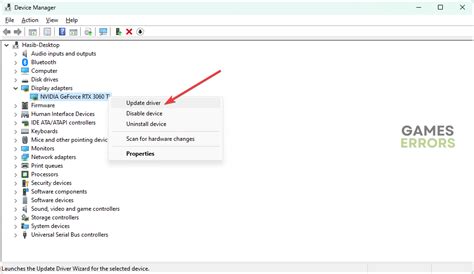
- Keep Drivers Updated: Always ensure your GPU drivers are up to date. Manufacturers frequently release performance optimizations and bug fixes for new games.
- Game-Specific Profiles: Both NVIDIA and AMD allow you to create specific profiles for individual games. Utilize these to apply your competitive settings only when necessary, keeping your desktop experience balanced.
- Image Scaling (NVIDIA) / Radeon Super Resolution (AMD): Experiment with these features. While not direct FPS boosters in the traditional sense, they allow you to render games at a lower resolution and then upscale them, potentially offering higher FPS while maintaining decent visual quality. For competitive play, native resolution is usually preferred for clarity, but these can be an option if your system struggles.
- Disable Antialiasing and Anisotropic Filtering (Globally/In-Game): For raw FPS, turn these off. Competitive players often find the slight blurring effect of AA detrimental to target acquisition anyway.
Testing and Fine-Tuning Your Settings
After adjusting your driver settings, don’t just jump into a match. Take the time to test your changes. Play a custom game, use a benchmark tool, or visit a practice range to observe your FPS and feel for input lag. Pay attention to consistency—stable high FPS is often better than wildly fluctuating higher peaks.
It’s also crucial to remember that what works best can vary slightly between games and system configurations. What boosts FPS in an older title might have less impact in a newer, more graphically demanding game. Experimentation and iterative testing are key to finding the perfect balance for your setup and preferred competitive titles.
Conclusion
Optimizing your GPU driver settings is a powerful, often overlooked step in preparing your system for competitive gaming. By focusing on maximum performance and minimal latency through settings like ‘Prefer Maximum Performance,’ ‘Low Latency Mode,’ and ‘Anti-Lag,’ you can extract every possible frame and reduce the time between your input and on-screen action. Combine these driver tweaks with appropriate in-game settings, and you’ll gain a tangible advantage, ensuring your hardware doesn’t hold you back from achieving your competitive goals.



