





Why is my gaming PC stuttering? How to fix FPS drops and optimize game performance?
Understanding Gaming PC Stutter and FPS Drops
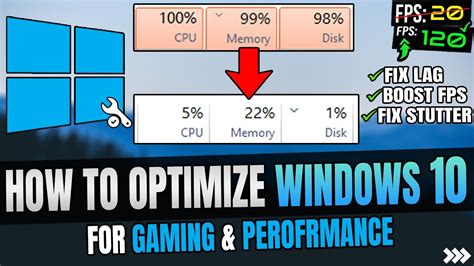
There’s nothing more frustrating for a PC gamer than experiencing stuttering or sudden FPS drops in the middle of an intense session. These issues can turn an enjoyable experience into a maddening ordeal, often indicating underlying problems with your system’s hardware, software, or optimization. Identifying the root cause is the first step towards a buttery-smooth gaming experience.
Common Reasons for Stuttering and FPS Drops
Before diving into fixes, it’s crucial to understand the potential culprits. Performance bottlenecks can stem from various sources:
- Outdated or Corrupt Drivers: Graphics card, chipset, and even audio drivers can significantly impact performance.
- Overheating Components: CPU and GPU throttles down their performance to prevent damage when temperatures rise too high.
- Insufficient Hardware: Your CPU, GPU, or RAM might not meet the game’s minimum or recommended specifications.
- Background Processes: Too many applications running in the background can hog valuable CPU, GPU, and RAM resources.
- Storage Issues: Slow hard drives, fragmented data, or insufficient free space can lead to loading stutters.
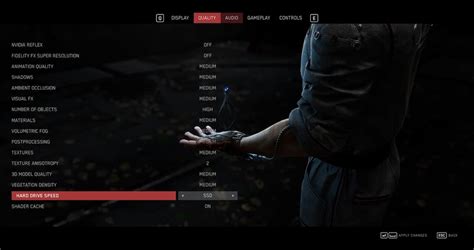
- In-Game Settings Too High: Pushing graphics settings beyond your hardware’s capabilities.
- Power Supply Issues: An inadequate or failing PSU can cause unstable power delivery to components.
- Malware or Software Conflicts: Malicious software or conflicting applications can consume resources and cause instability.
Troubleshooting and Fixing Performance Issues
1. Update Your Drivers
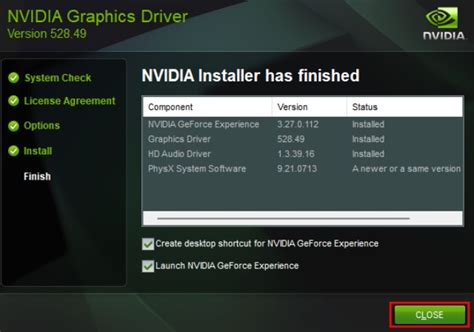
This is often the easiest and most effective first step. Graphics card drivers (NVIDIA, AMD, Intel) are regularly updated to improve performance and compatibility with new games. Ensure your chipset, sound, and other peripheral drivers are also up to date.
- Graphics Drivers: Download directly from the manufacturer’s website (NVIDIA GeForce Experience, AMD Radeon Software, Intel Driver & Support Assistant).
- Chipset Drivers: Visit your motherboard manufacturer’s support page.
2. Monitor and Manage Temperatures
High temperatures are a major cause of performance throttling. Use monitoring software like HWMonitor, MSI Afterburner, or NZXT CAM to check your CPU and GPU temperatures while gaming.
- Clean Your PC: Dust accumulation severely hinders airflow. Regularly clean your case fans, CPU cooler, and GPU heatsink with compressed air.
- Improve Airflow: Ensure proper fan orientation and cable management within your case. Consider adding more case fans if needed.
- Repaste CPU/GPU: For advanced users, replacing old thermal paste can significantly reduce temperatures.
3. Adjust In-Game Graphics Settings
Lowering certain graphics settings can yield significant FPS improvements with minimal visual impact.
- Resolution: The most impactful setting. Try lowering it if you’re struggling.
- Texture Quality: Lowering this frees up VRAM.
- Shadow Quality: Shadows are very resource-intensive.
- Anti-Aliasing: Can be a huge performance hog; consider reducing or disabling it.
- Volumetric Effects, Reflections, Ambient Occlusion: Often demanding settings.
- V-Sync/G-Sync/FreeSync: While not directly fixing stutter, these technologies can reduce screen tearing and make frame delivery feel smoother. Ensure they are configured correctly.
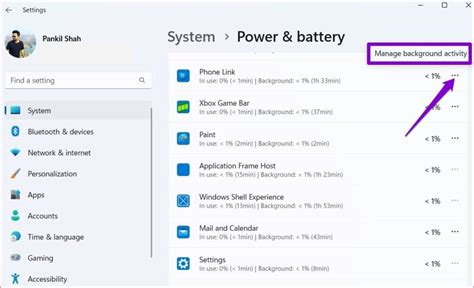
4. Close Background Processes and Optimize Windows
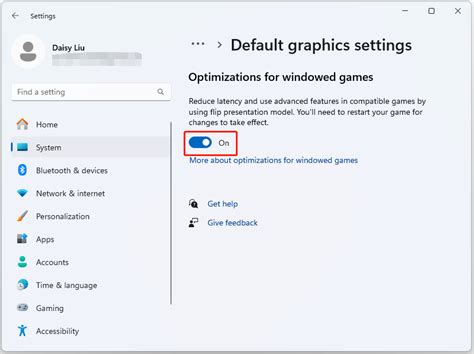
Free up system resources by closing unnecessary applications and optimizing Windows settings.
- Task Manager (Ctrl+Shift+Esc): End tasks for non-essential applications. Check the ‘Startup’ tab to disable programs launching with Windows.
- Windows Game Mode: Ensure Game Mode is enabled in Windows Settings > Gaming > Game Mode.
- Power Options: Set your power plan to ‘High Performance’ (or ‘Ultimate Performance’ if available) in Control Panel > Hardware and Sound > Power Options.
- Disable Visual Effects: In System Properties > Advanced > Performance Settings, choose ‘Adjust for best performance’.
5. Check Your Storage Drive
Slow or full storage can lead to performance hitches.
- Free Up Space: Aim to keep at least 15-20% of your drive free.
- Defragment (HDDs Only): If you’re still using an HDD, defragmenting it can improve access times. Never defragment an SSD.
- Upgrade to SSD: If your OS and games are on an HDD, upgrading to an SSD (or NVMe) is one of the most impactful upgrades for overall system responsiveness and loading times.
6. Verify Hardware Integrity
Ensure all your components are properly seated and functioning.
- RAM: Reseat your RAM sticks. Run a memory diagnostic tool (Windows Memory Diagnostic) to check for errors.
- GPU: Ensure your graphics card is firmly seated in its PCIe slot and that all power cables are securely connected.
- PSU: If you suspect your power supply, consider testing it with a PSU tester or swapping it with a known good one if possible.
7. Scan for Malware and Verify Game Files
- Malware Scan: Run a full system scan with reputable antivirus software.
- Verify Game Files: Most game launchers (Steam, Epic Games, GOG, etc.) have an option to verify or repair game files, which can fix issues caused by corrupt installations.
Conclusion
Experiencing stuttering and FPS drops can be disheartening, but with a systematic approach, most issues can be resolved. Start with the simplest solutions like driver updates and temperature checks, then move on to more in-depth troubleshooting. Regular maintenance, including cleaning your PC and managing background processes, will help keep your gaming rig running smoothly and efficiently for years to come. By diligently applying these fixes, you can reclaim your smooth, immersive gaming experience.


