





How to diagnose sudden FPS drops in games on my gaming rig?
Few things are as frustrating for a PC gamer as experiencing sudden, unexplained Frame Per Second (FPS) drops in their favorite titles. One moment you’re enjoying smooth, high-fidelity gameplay, and the next, your frame rate plummets, turning your immersive experience into a stuttering mess. Diagnosing the root cause can feel like a daunting task, but with a systematic approach, you can pinpoint the problem and get back to peak performance. This guide will walk you through the most common culprits and how to diagnose them.
Step 1: The Basics – Software & Settings Check
Before diving deep into hardware, it’s crucial to rule out the simpler, more common software-related issues.
Update Your Drivers
Outdated or corrupted graphics card drivers (GPU drivers) are a frequent cause of performance inconsistencies. Always ensure your NVIDIA, AMD, or Intel graphics drivers are up to date. Use the official software (GeForce Experience, AMD Adrenalin, or Intel Driver & Support Assistant) or download directly from the manufacturer’s website.
Similarly, ensure your chipset drivers and other essential system drivers are current. A Windows Update can sometimes help, but direct downloads are often more reliable for critical components.

Verify Game Settings
Have you recently changed in-game graphics settings? Sometimes, enabling a new, demanding feature (like Ray Tracing or a higher anti-aliasing setting) or simply bumping up texture quality can push your system beyond its limits, leading to FPS drops. Try reverting your in-game settings to a previously stable configuration or even lower them slightly to see if the issue persists.
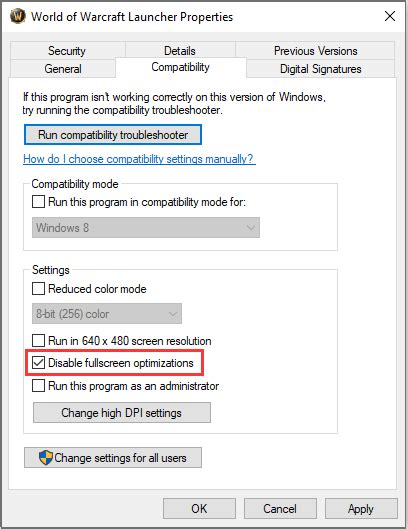
Check the game’s executable for compatibility mode settings or if it’s running as administrator, which can sometimes interfere with performance or driver interactions.
Close Background Applications
Other programs running in the background can hog CPU, RAM, or even GPU resources. Check your Task Manager (Ctrl+Shift+Esc) for resource-intensive applications like web browsers with many tabs, video editing software, streaming apps, or even certain anti-virus programs. Close anything unnecessary while gaming.
Even overlays from Discord, Steam, or other launchers can sometimes cause minor performance hits or conflicts. Try disabling them temporarily.
Step 2: Monitor Your Hardware – The Overheating Factor
Overheating is a primary suspect for sudden FPS drops, as components will “throttle” their performance to prevent damage when temperatures get too high.
Monitor CPU & GPU Temperatures
Use monitoring software like HWMonitor, MSI Afterburner (which also has an OSD for in-game monitoring), or HWiNFO64 to keep an eye on your CPU and GPU temperatures while gaming. During intense loads, GPU temperatures ideally should stay below 85°C (185°F), and CPU temperatures below 90°C (194°F), though lower is always better. Sudden spikes coinciding with FPS drops are a strong indicator of thermal throttling.
Check Airflow & Cooling
If temperatures are high, inspect your PC’s cooling system. Are all fans spinning? Is your case dusty? Dust buildup on heatsinks and fans significantly impedes cooling. Clean your PC regularly with compressed air. Ensure proper airflow within your case – sometimes, repositioning cables or adding case fans can make a difference. Verify that your CPU cooler and GPU heatsink are securely mounted.
Step 3: Deeper Hardware & Software Diagnostics
If basic checks and temperature monitoring don’t reveal the culprit, it’s time to dig deeper.
Check for Bottlenecks
While gaming, use monitoring software to observe your CPU and GPU usage. If your GPU usage consistently stays low (e.g., below 90%) while your CPU usage is high (near 100%), you might be experiencing a CPU bottleneck. Conversely, if your GPU is at 99-100% and your CPU is relatively low, your GPU is the limiting factor (which is generally desired, assuming it’s performing as expected).
Sudden FPS drops can sometimes indicate an intermittent bottleneck or a component struggling under load it previously handled.
Power Supply Unit (PSU) Issues
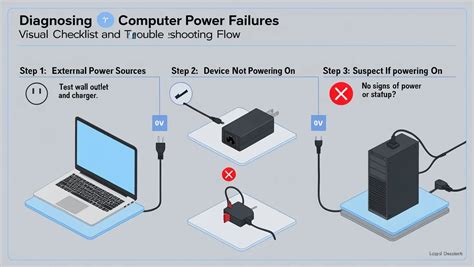
An aging or insufficient PSU can struggle to deliver consistent power, especially during peak load, leading to instability or sudden performance drops. If your PSU is old or rated just barely above your system’s total power draw, consider testing with a known good, higher-wattage PSU if possible. Unexplained shutdowns or reboots are also strong indicators of PSU problems.
RAM & Storage Health
Faulty RAM can cause a myriad of system instabilities, including FPS drops. Run a memory diagnostic tool (like Windows Memory Diagnostic or MemTest86) to check for errors. Ensure your RAM modules are properly seated in their slots.
Similarly, a failing hard drive (HDD) or Solid State Drive (SSD) where the game is installed can cause stuttering and load time issues. Use CrystalDiskInfo or similar tools to check your drive’s S.M.A.R.T. status for any warning signs.
Reinstall Graphics Drivers (Clean Installation)
Sometimes, simply updating drivers isn’t enough. A clean installation can resolve deeper driver corruption. Use Display Driver Uninstaller (DDU) in Windows Safe Mode to completely remove existing drivers, then install the latest version from scratch. This is often a powerful fix for stubborn driver-related performance issues.
Step 4: Advanced Troubleshooting & Last Resorts
Scan for Malware/Viruses
Malicious software can consume significant system resources, leading to performance degradation. Run a full system scan with reputable anti-virus software.
Check for OS Corruption
Windows itself can become corrupted over time. Use built-in tools like System File Checker (SFC) by running sfc /scannow in an elevated Command Prompt, or Deployment Image Servicing and Management (DISM) with commands like DISM /Online /Cleanup-Image /RestoreHealth to repair system files.
Test Individual Components
If all else fails, and you suspect a hardware issue but can’t pinpoint it, consider testing components individually if you have spares or access to another PC. Swapping out your GPU, for example, can quickly confirm or deny if your graphics card is the problem.
Consider a Fresh Windows Installation
As a last resort, a clean installation of Windows can resolve deep-seated software conflicts and operating system corruption that are otherwise difficult to diagnose. While drastic, it often provides a definitive answer on whether the issue is software or hardware related.

Conclusion
Diagnosing sudden FPS drops requires patience and a methodical approach. By systematically checking your drivers, game settings, background processes, hardware temperatures, and other potential culprits, you can identify and resolve most performance issues. Remember to tackle the easiest and most common problems first before moving to more complex diagnostics. Happy gaming!


